
Before starting
Before starting, make sure you have the feature enabled for your organisation.
You can check this on ⚙️ → Settings. If you have the “Attendance” section you are good to go! Otherwise, contact us.
Set up
Login to the Office app, navigate to ⚙️ → Settings and open the Attendance section.
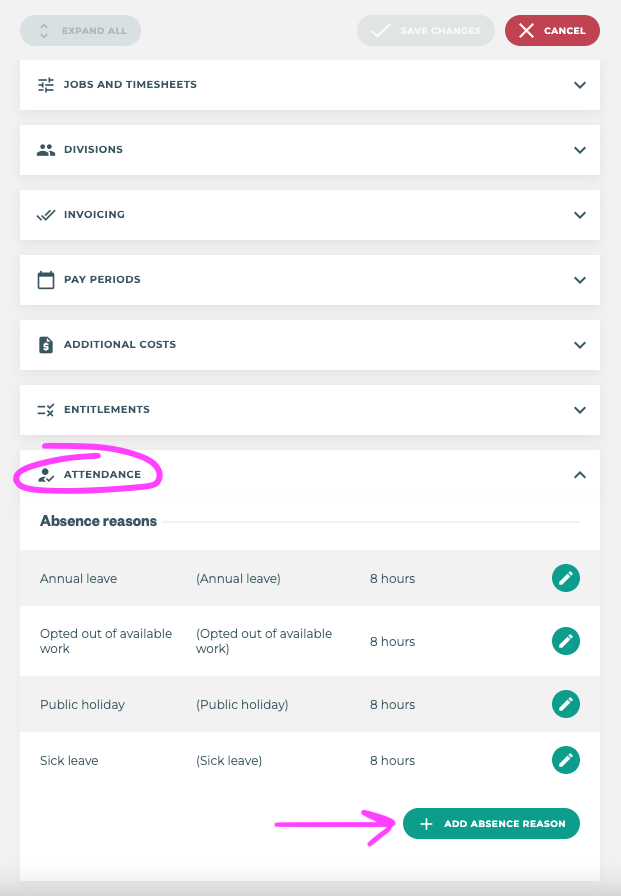
Add your absence reasons, these records will be important for payroll calculation and also for reporting.
-
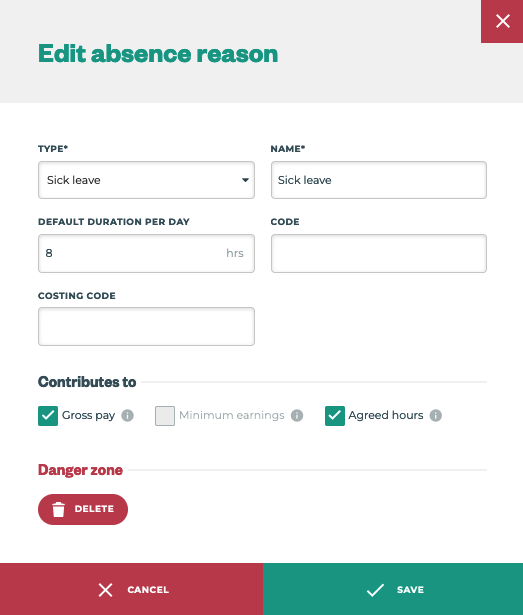
Type: Preset absence types
-
Name: Custom name for the absence type, this is shown to all employees including the Field app
-
Default duration per day: When informing new absences, this value will be set as default and can be overwritten in the Office app.
-
Code: Custom code for the absence type, used in reports. If sharing with payroll check the absence code matches.
-
Costing code: Typically a cost related department, used in reports. If sharing with payroll check the costing code matches.
-
Contributes to:
-
Gross Pay: If yes, any absences using this reason will contribute to the employee pay. Payments will be calculated using the absence duration (hrs) and the employee hourly rate or the minimum wage.
-
Minimum earnings: If yes, any absences using this reason will be included when calculating the employee’s minimum earnings top-up. Requires “Minimum earnings” to be specified in the employee settings.
-
Agreed hours: If yes, any absences using this reason will contribute to the employee’s hours reducing any top-up hours. Requires “Top-up to agreed hours” to be enabled in the employee settings.
-
Once added, you’re ready to start tracking and managing your team attendance!