
What Job Information Can be Edited & Where
There are a few components of every Job that can be edited, and it is important to understand where to edit and what the implications of those edits are. These include:
-
Job Summary
-
Expenses
-
Timesheets
-
Block Progress
-
RELOCATE Feature
Edits relating to Employee Payroll cannot be made when the Pay Period is Closed. This is a feature to help prevent changes made after employees are paid for record continuity. Please talk to your Tātou Admin or Payroll Teams to ensure any incorrect pay is actioned in accordance to your organisation’s protocols.
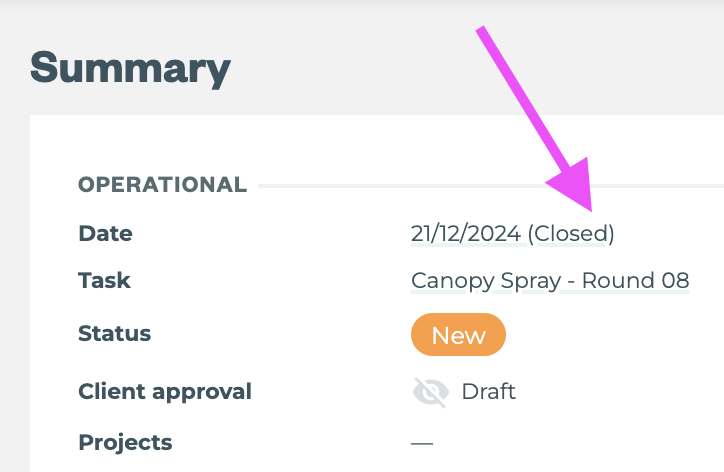
Job Summary Section
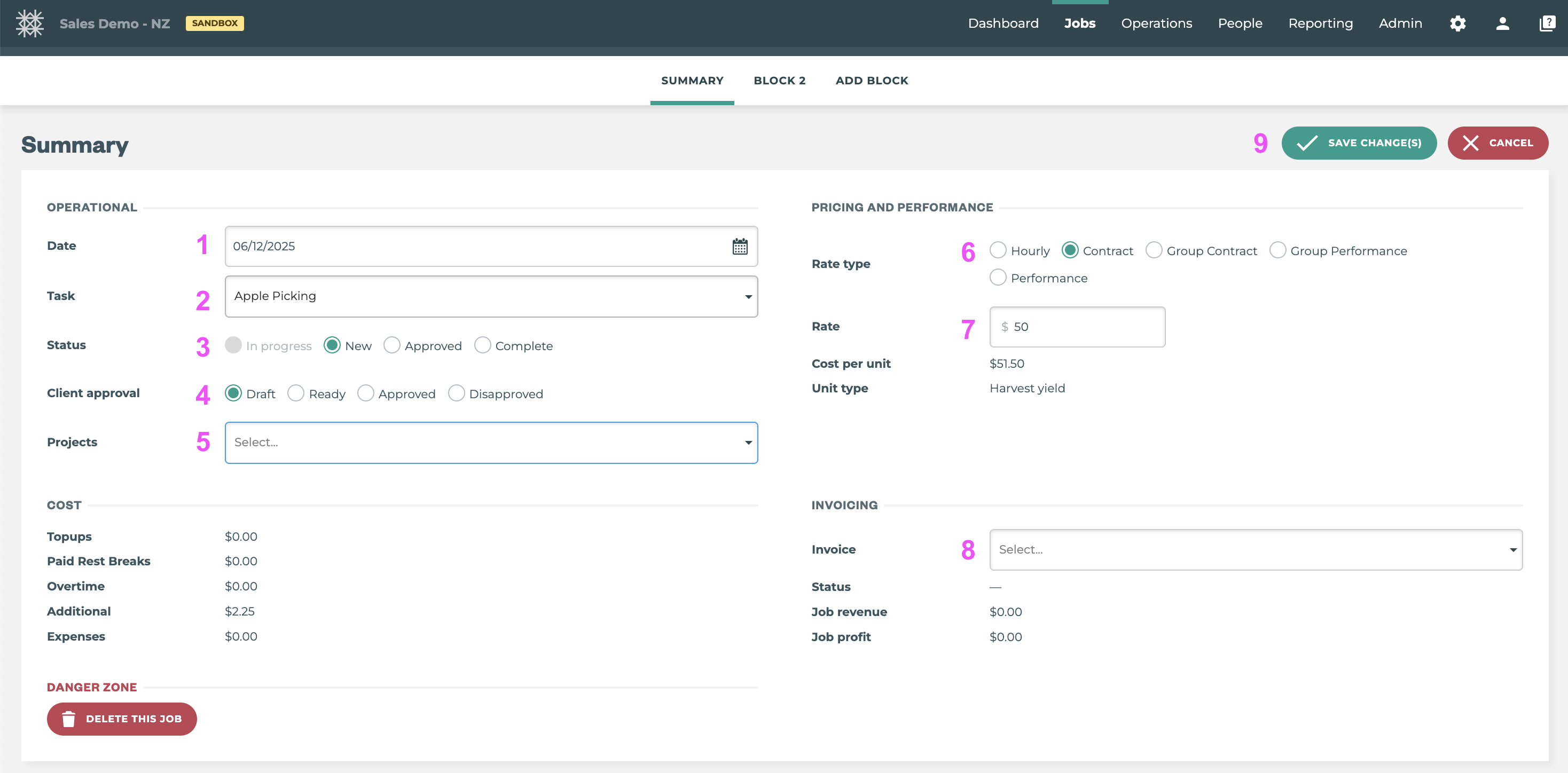
How-To: Edit Summary Information
-
Click the Edit Summary button →

-
Make Required Changes
-
Click the Save Change(s) button →

|
Item |
Editable on OPEN Pay Period? |
Editable on CLOSED Pay Period? |
Bulk Edit Available |
|---|---|---|---|
|
✅ |
❌ |
❌ |
|
✅ |
❌ |
❌ |
|
✅ |
✅ |
✅ |
|
✅ |
✅ |
✅ |
|
✅ |
✅ |
✅ |
|
✅ |
❌ |
❌ |
|
✅ |
❌ |
❌ |
|
✅ |
✅ |
✅ |
Job Expenses Section

Pro-Tip: Set Default Expenses linked to Task to automate Job Expenses added to Jobs in Tātou Field App.
How-To: EDIT Expenses
-
Click the Edit Expenses button →

-
Make Changes to current expense items
-
Click the Save Change(s) button →
|
Item |
Editable on OPEN Pay Period? |
Editable on CLOSED Pay Period? |
Bulk Edit Available |
|---|---|---|---|
|
✅ |
✅ |
❌ |
|
✅ |
✅ |
❌ |
|
✅ |
✅ |
❌ |
How-To: ADD Expenses
-
Click the Edit Expenses button →
-
Click the + Add Expenses button →

-
Select the Expense from the dropdown list of Equipment/Expenses
-
Add the Quantity or Hours
-
Add the Rate (if no default availalbe)
-
Click the Save Change(s) button →
How-To: DELETE Expenses
-
Click the Edit Expenses button →
-
Click the Red Delete Icon →

-
Click the Save Change(s) button →
Users CANNOT edit the Invoicing Rate of an Expense from the Job.
Timesheets Section
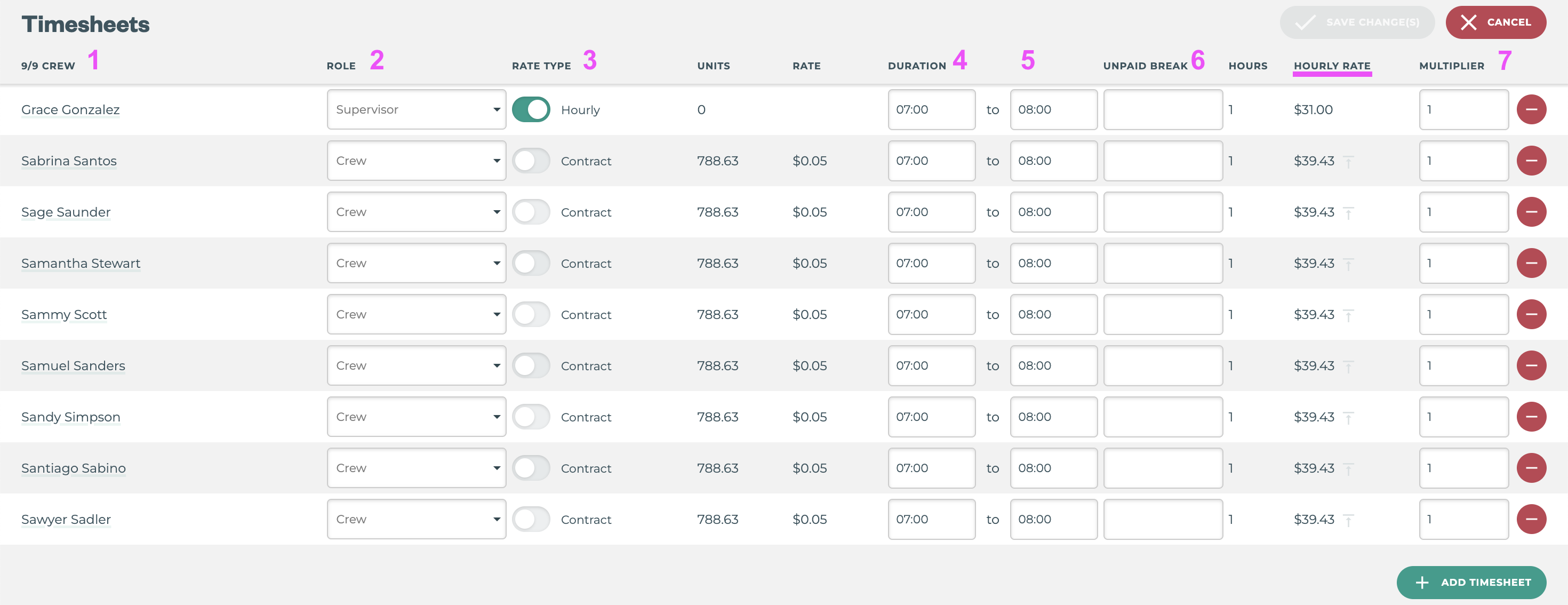
What Timesheet Values can be edited from the Timesheets Section?
|
Item |
Editable on OPEN Pay Period? |
Editable on CLOSED Pay Period? |
Bulk Edits Available? |
|---|---|---|---|
|
✅ |
❌ |
❌ |
|
✅ |
❌ |
❌ |
|
✅ |
❌ |
❌ |
|
✅ |
❌ |

|
|
✅ |
❌ |
|
|
✅ |
❌ |
|
|
Units |
❌ see Block Progress |
❌ |
❌ |
|
Unit Rate |
❌ see Job Summary |
❌ |
❌ |
|
Hourly Rate |
❌ |
❌ |
❌ |
How-To: EDIT Timesheets
-
Click the Edit Timesheets button →

-
Make Changes to current timesheets
-
Click the Save Change(s) button →
How-To: ADD Timesheets
-
Click the Edit Timesheets button →
-
Click the + Add Timesheet button →
-
Select the Employee from the drop down list ->
-
Default Role and Job Start and Finish Time will populate for the Employee, but can be edited
-
-
Add Unpaid Break or Job Multiplier if necessary
-
Click the Save Change(s) button →
Units are added to timesheets through the Block Progress Section. You must first add the timesheet to be able to add units to Individual Contract and Performance Rate Jobs.
Group Contract and Group Performance Jobs will automatically split the units tracked between timesheets once a Timesheet is added to the Job.
How-To: DELETE Timesheets
For Contract or Performance Rate Jobs, units assigned to an employee must be deleted from the Block Progress PRIOR to deleting the Employee’s timesheet (see How-To: Edit Block Progress section for more details).
-
Click the Edit Timesheets button →
-
Click the Red Delete Icon →
-
Click the Save Change(s) button →
Block Progress Tabs
All Jobs with Blocks Added will have Block Progress Tabs, but only Jobs where Progress was tracked (Simple Summary, Assign Rows, or Tag & Track) with report on % Complete.
How-To: EDIT Block Progress
Next to the Summary Tab you’ll find a Tab for each of the Blocks associated with the Job.
How-To: Edit Overall Block Progress - Units Worked
-
Click on the Block Name Tab to open the Block Progress Details
-
Click the Edit Block Progress button →

-
Edit the units worked value by:
-
Selecting the Start and Finish Row
-
Manually entering in the Units Worked
-
-
Click the Save Change(s) button →
Editing Block Progress in this way can be used for Hourly, Group Contract and Group Performance Jobs, where the exact units per person is not required for accurate records or pay. Where units per individual workers need to be recorded, see the options below.
How-To: Edit Block Progress on ASSIGN ROW Jobs
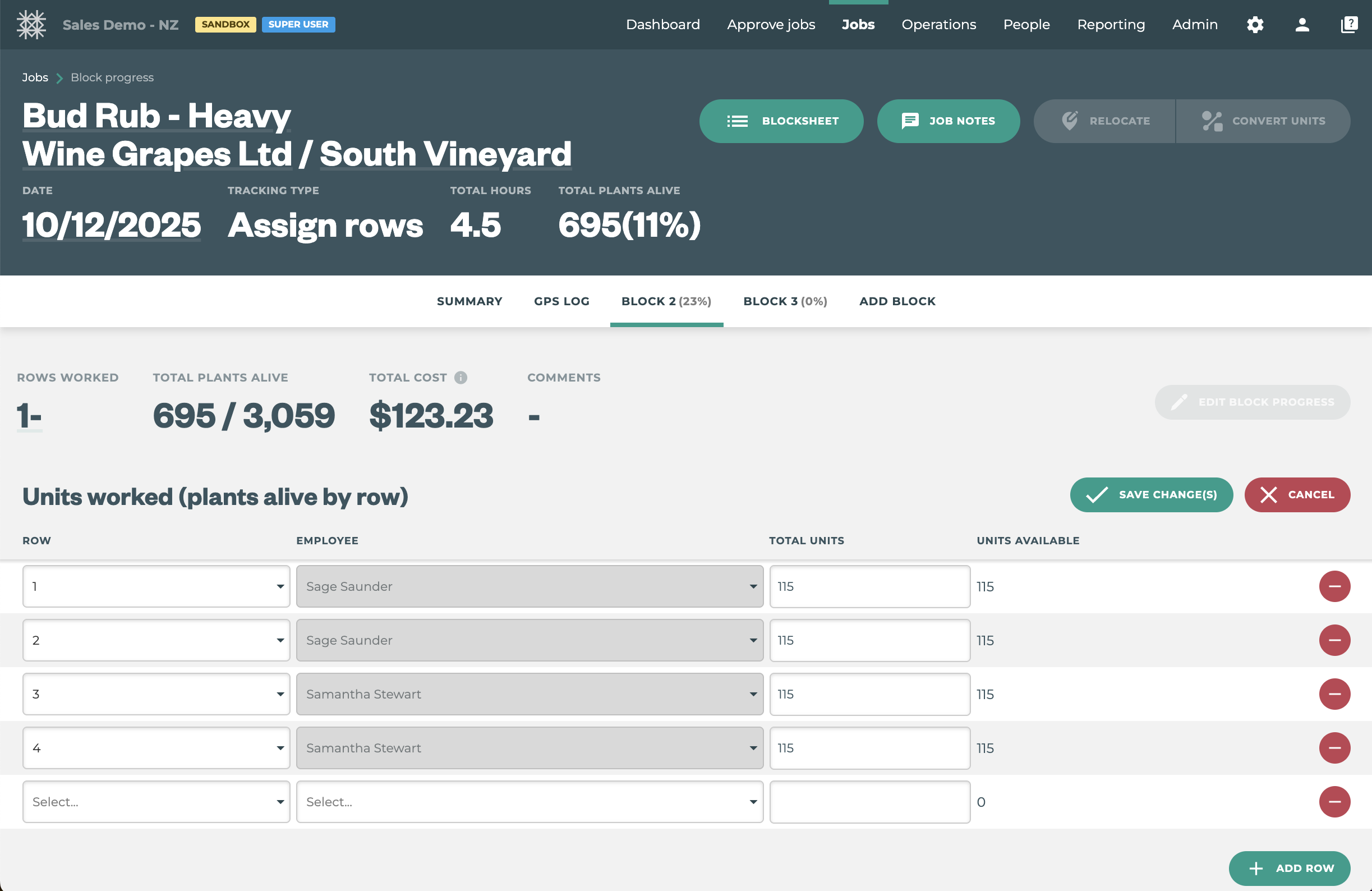
-
Click on the Block Name Tab to open the Block Progress Details
-
Click the Edit Units Worked button →

-
From here you can:
-
Delete Rows Tracked using the Red Delete Icon →
-
Click the + Add Row button →

-
Edit the Units Worked
-
-
Click the Save Change(s) button ->
Note: For Assign Rows Job tracked in Tātou Field there will be a button at the top of the Job Screen labeled BLOCKSHEET →