
What has changed?
Tātou Office App is now equiped with settings and calculations that help organisations manage Employee weekly earnings or hours top ups where minimum hours or minimum earnings are averaged across multiple weeks (aka The “120” rule).
Check your countries local rules before and after enabling this feature to ensure calculations available are in line with your obligation to any employees affected by these rules.
Employee Workload and topup settings
Employee specific setting are located in each Employee Employment Period. The options include: None, Minimum Earnings or Minimum Hours, and allows users to set the applicable averaging timeframe as defined by your local regulations.
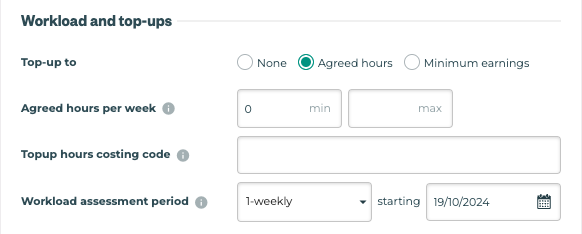
The availability of these calculations and reporting may be restricted depending on an organisations payroll processing and documentation used. Examples include:
-
Organisations who are using Timesheets or Payroll Legacy Reports for payroll
-
Organisations who have employees with variable pay period start dates
Workload Dashboard
The Workload dashboard is designed to help Office App users visualise and evaluate potential top ups associated with Employee Workload and topup settings, as well as view trends in overall work load both high and low.
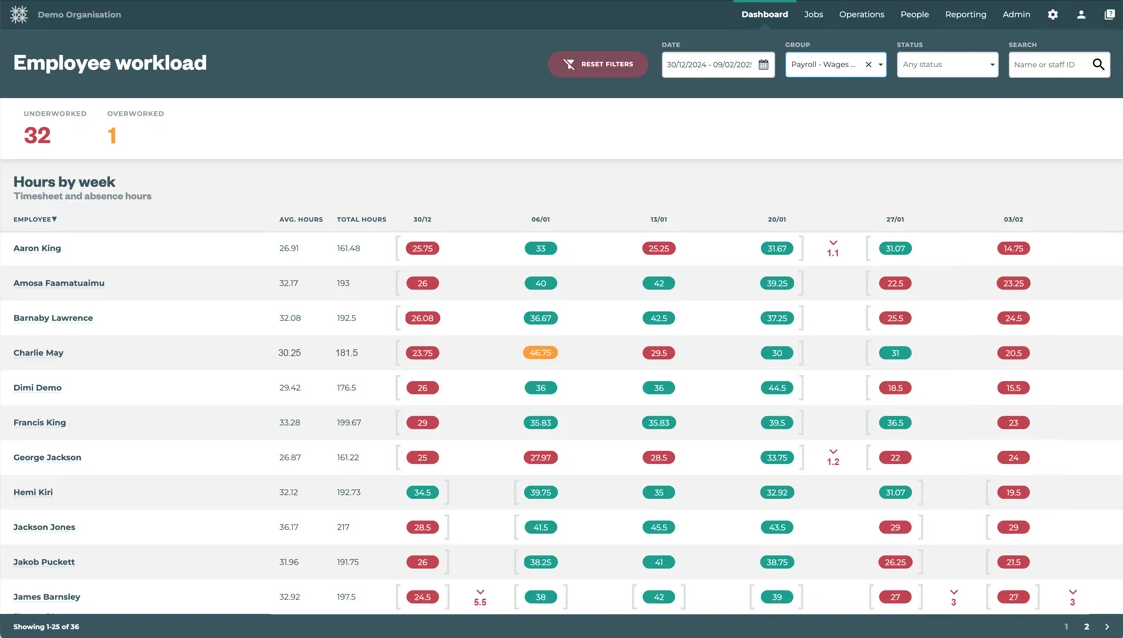
How do I use it?
Employee Workload and topup settings
Adding Workload and top up settings
Employee specific setting are located in each Employee’s Employment Period(s). Admin users can use any of the following tools to add these setting to an employee(s)
-
Tātou Office App’s Employee Bulk Edit Feature
-
Tātou Office App’s Bulk Import Feature
-
Individual Employee Profile Updates
-
Open Employee Profile
-
Open the Employment Tab
-
Open the Current Employment Period
-
Edit Employment Period
-
Add Workload and top ups settings details
-
Save
-
Default settings after release will be:
-
Top-up to: NONE, unless values defined prior to the release
-
Workload assessment period: 1-weekly
-
This can be set to a set 1, 2, 3, or 4 week averaging window
-
-
Workload assessment period: Should be set to the start date of the pay period during when they start.
Partial Week Pro Rating
For Employees with Employment Period Start Dates that are not the first day of a Pay Period, Tātou will calculate Top-up potential based on prorated values for the partial week. This same rule applies to employees who leave before the last day of the pay period.
Workload assessment period start dates - while these can be backdated Tātou calculations require the FIRST pay period selected to be OPEN in order for calculations to start.
If the assessment period start date is backdated to CLOSED Pay Period(s) Tātou will not start calculations and automated topups until the FIRST FULL assessment period cycle.
Example: Employee A Started on , but their Workload Settings in their profile were not set up until for 30 hours averaged over 4 weeks. If the Workload assessment period start date was set to 1 Dec 2025 (with 2 closed pay periods between set up and the start date), Tātou Workload Calculations would not start until the pay period starting .
Underworked hours between and would not be calculated in the the 4th Week’s pay period starting .
Pay Period Calculations
Employment Period Settings will take effect on the FIRST Pay Period of a full assessment period cycle, and any required top ups will be reported in the LAST Pay Period of that assessment period cycle.
Workload Dashboard
Like many of our other dashboards there are filters and links to help highlight data of importance to our users. Take a look and reach out if you’d like a demo.
How Will This Affect You?
If your Organisation is currently using the Top up to Minimum Hours or Earnings, these setting will continue calculating weekly as before.
If your organisation will be using this feature, updating Employment Periods will update the Workload Dashboard reporting and Pay Period Calculation will take effect.
How To Prepare Your Account?
The number of employees affected and type of Top up to Minimum value may determine which method works best for your team.
1. Review Tātou Employment Period Improvements
If you have not had a chance to look through the updated Employment Period Feature, take this time to review the release notes here.
Ensuring Employment Period Start and End Dates accurately reflect employment agreements will ensure these new Top Up to Minimum Hours or Earnings Calculations accurately prorate values when an employee’s start date does not fall on the first day of the Pay Period. If you have any questions or would like any support reviewing this information send us an email at support@tatou.app
2. Tātou Attendance Feature
If your Organisation is not already using Tātou’s Attendance Feature, enabling and using this feature will ensure absences that should contribute to agreed minimum hours or earnings are taken into account when calculating top up values (e.g. public holidays, sick leave, annual leave, etc.)
If your Organisation is already using Tātou’s Attendance Feature, ensure the Absence Reasons have been edited to contribute to the applicable minimum value or gross pay so these values can be taken into account in the calculations for this feature.
For more information on the Tātou Attendance Feature click here.
Absence Values are calculated based on the Employee’s hourly rate and the hours entered for the absence. This is a know limitation of the calculations within Tātou, and must be accounted for when using this feature for Minimum Earnings Top Ups and Leave reporting.
3. Update Employee Profile → Employment Period Settings
Define Assessment Period Start Dates based on Groups of Employees who started within the same Pay Period Week.
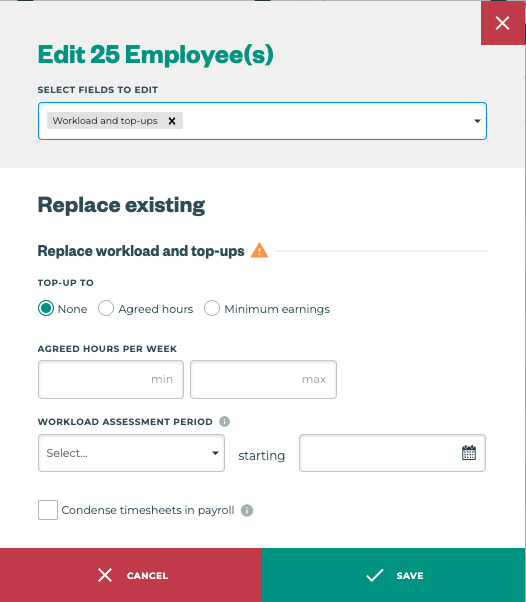
Bulk Edit:
-
Filter to Applicable Recruitment Type (e.g. RSE, PALM, etc.)
-
Select All Employees that require update
-
Bulk Edit
-
Update Details
-
Save
For Organisations Using Minimum Earnings Top Up - Bulk Edit is only appropriate for Employees whose hourly rate and minimum hours are Applicable
Bulk Import: Top Up to Minimum EARNINGS
-
Reporting Menu → Exports → Employee Export
-
Review/Filter to Employees who are covered under the applicable regulations
Edit/Check Columns
-
current_employment_period_start_date
Ensure this date is the actual start date for their current employment period
-
current_employment_period_agreed_hours_min
This can be the hours used to calculate minimum earnings
-
current_employment_period_workload_topup_type-
Value =
minimum_earnings
-
-
current_employment_period_workload_period_start_date
Must be the first day of a Pay Period (YYYY-MM-DD)
-
current_employment_period_workload_period_duration-
Accepted Values Include:
-
1 -
2 -
3 -
4
-
-
-
current_employment_period_minimum_earnings
Bulk Import: Top Up to Minimum HOURS
-
Reporting Menu → Exports → Employee Export
-
Review/Filter to Employees who are covered under the applicable regulations
Edit/Check Columns
-
current_employment_period_start_date
Ensure this date is the actual start date for their current employment period
-
current_employment_period_agreed_hours_min
This can be the hours used to calculate minimum earnings
-
current_employment_period_workload_topup_type-
Value =
agreed_hours
-
-
current_employment_period_workload_period_start_date
Must be the first day of a Pay Period (YYYY-MM-DD)
-
current_employment_period_workload_period_duration-
Accepted Values Include:
-
1 -
2 -
3 -
4
-
-
-
current_employment_period_topup_to_agreed_hours_costing_code
4. Pay Periods & Payroll Reporting
Calculations are based on your Organisations Pay Period Settings. As such, any Top Up Settings added must remain linked to Pay Period Start Dates.
See Examples:
-
Fortnightly Pay Period that runs Thursday thru Wednesday:
-
current_employment_period_workload_period_start_datemust be a Thursday, but can be either the first or second Thursday in that Pay Period
-
-
Weekly Pay Period that runs Monday thru Sunday
-
current_employment_period_workload_period_start_datemust be a Monday
-
Organisations using Payroll (legacy) and Timesheet Reports for their weekly payroll will not be able to report top up values calculated in Tātou. Contact us at support@tatou.app if you would like to review reporting options.
If your Organisation has Pay Periods outside of Tātou that start on different days of the week, enabling this feature may result in data that is inaccurate. For that reason, this feature should only be used for Employees whose pay period reflects the pay period start dates within Tātou.
5. Payroll Report Summary Rows
Pay Summary Rows can be added to your custom payroll report. Check with your Payroll provider to ensure codes are set up, as well as how this data should be reported for import. If you need any help updating your Payroll Report email support@tatou.app