What’s changed?
This release has packed in a few changes driven by customer feedback in Tātou Office App including: pay period notes, payroll report filtering to assist admin when seasonal crew departure dates require multiple pay runs, as well as a few other tools to improve user experience. We’ve also expanded our Crew Performance Reporting in Tātou Field App with a new Crew Stats View.
Field App | Crew Stats
Supervisors can now review their Crew’s contract rate performance over time to help keep track of who’s improving and who might need some help.
%20(2).png?cb=71d918f2367a0eb7d3e005dcf68e1a23)
People | Pay Periods and Employment Period Changes
Pay Period Notes:
We’ve had several requests from Admin users to be able to add Notes to pay periods similar to the Job Notes feature. With Pay Period Notes Admin users are able to add custom notes to Pay Periods to not only keep a record of changes made, but also keep others in their organisation aware of those changes.
Payroll Report Employee Status Filter:
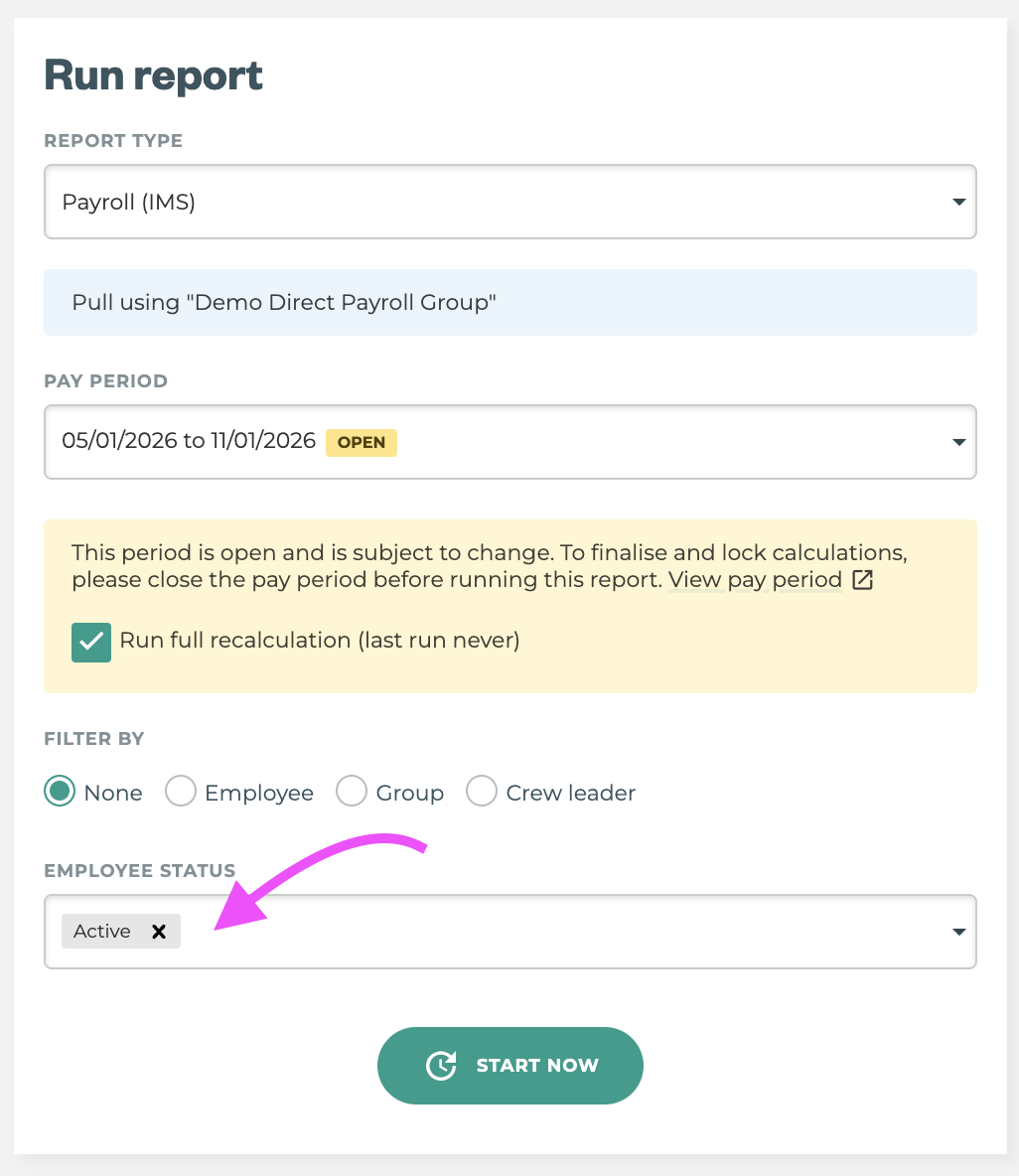
As the seasons end and seasonal workers return home, our customers often find themselves running two or more pay runs in a normal week to accomodate final pay for those leaving. To assist in this process we’ve added an Employee Status Filter to Custom Payroll Reports to make pulling payroll reports for both departed and current employees a bit easier.
Employee Season Number:
Employee experience can play a role in an employee’s earnings under both NZ and AU labour laws. To aid customers tracking this information in Tātou, we’ve added an Employee Season Number to each Employment Period. This number can either automatically calculate based on an employee’s unique Employment Periods, or can be manually updated to ensure it captures past seasons not captured in Tātou.
Admin | Block Details
New Block Values
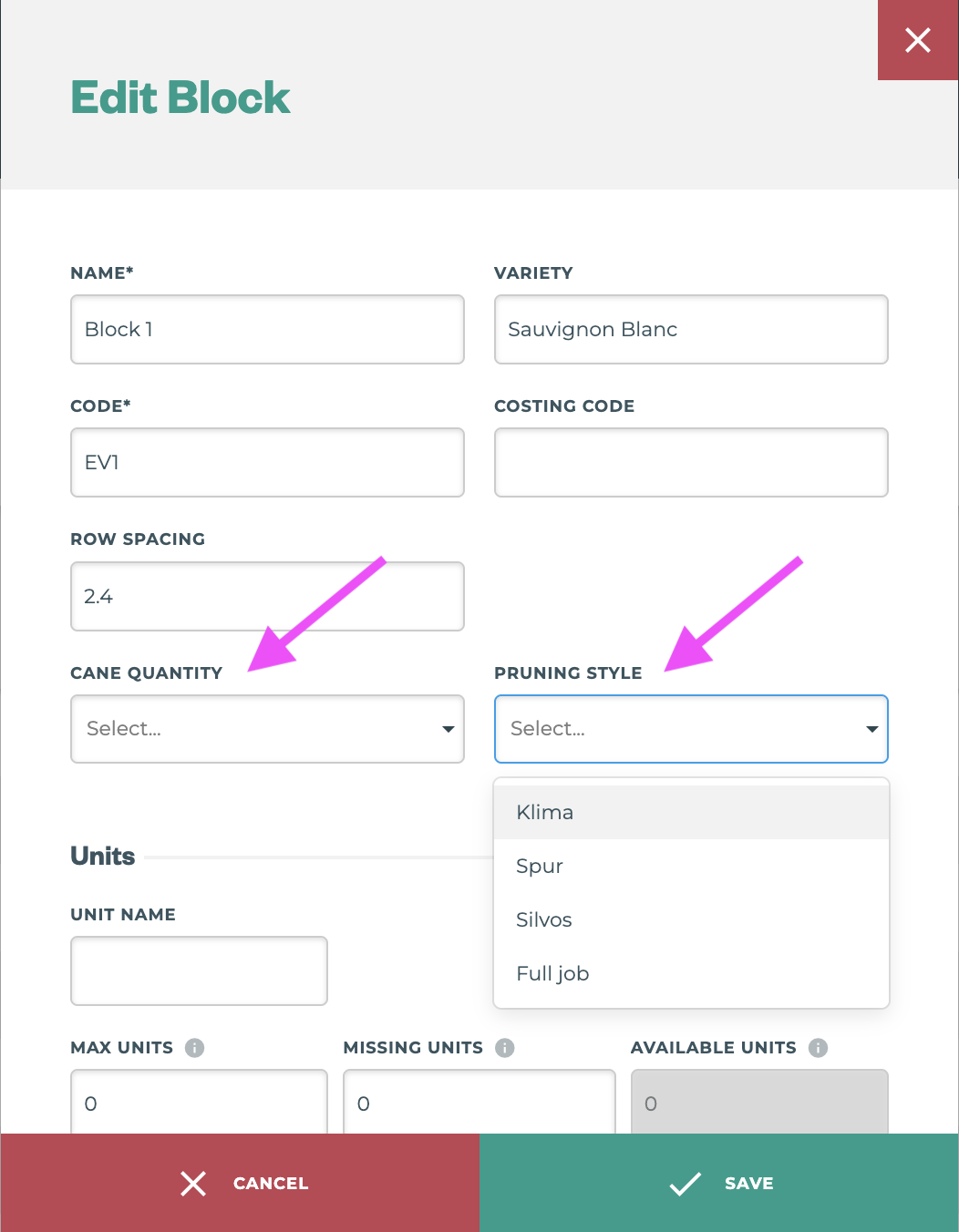
In preparation for viticultural pruning season we’ve added two new Block details: pruning_style and cane_number. These values are at the block level, and can be used to help filter blocks when creating projects, and will be added to the Productivity Dashboard as grouping tools to help managers keep a more detailed eye on pruning costs by type and or cane number.
Settings | QR Code Generator
Tag and Track Custom ID Tags
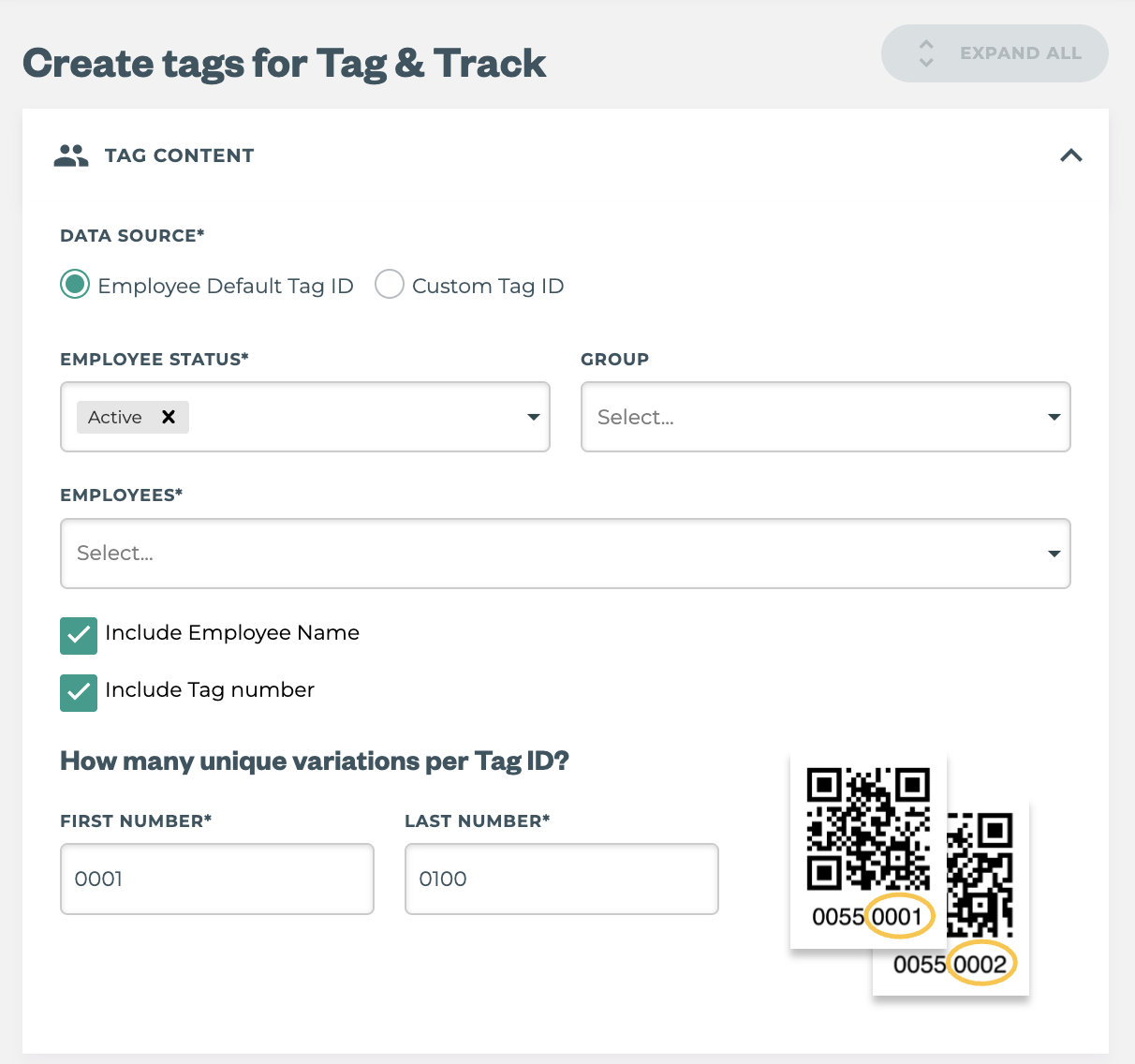
Tag and Track has historically relied on assigning Employees Default IDs to generate Employee specific tags. However, with feedback from our customers we’ve updated the QR Code Generator to be able to generate based on Default IDs or generate Custom Tag IDs which allow more flexibility in Tātou Field App to assign Tag IDs on the day, rather than ensuring employees have the same Tags each day.
How do I use it?
How to use…Field App Crew Stats
This feature is only available to users with crew leader permissions, and reports average hourly rate earned across contract rate type Jobs for the weeks selected.
How to…Open Crew Stats View
-
Tap the 3 dots to open the Field App Menu
-
Tap Crew
-
Tap Crew Stats Tab
-
Select the Date Range to Review Stats
How to…Interpret the Crew Stats Reported
Hourly Rate -> average earned hourly rate on contract work
Red or Green $ value → $ Under or $ Over comparison to previous week
This feature does not account for performance or hourly rate type work
Talk to your teams and email us their thoughts → support@tatou.app
How to use…Pay Period Notes
Like Job Notes, Pay Period Notes will have a Notes button at the top of each Pay Period, allowing Payroll and Admin to add pay period-specific notes that remain on file.
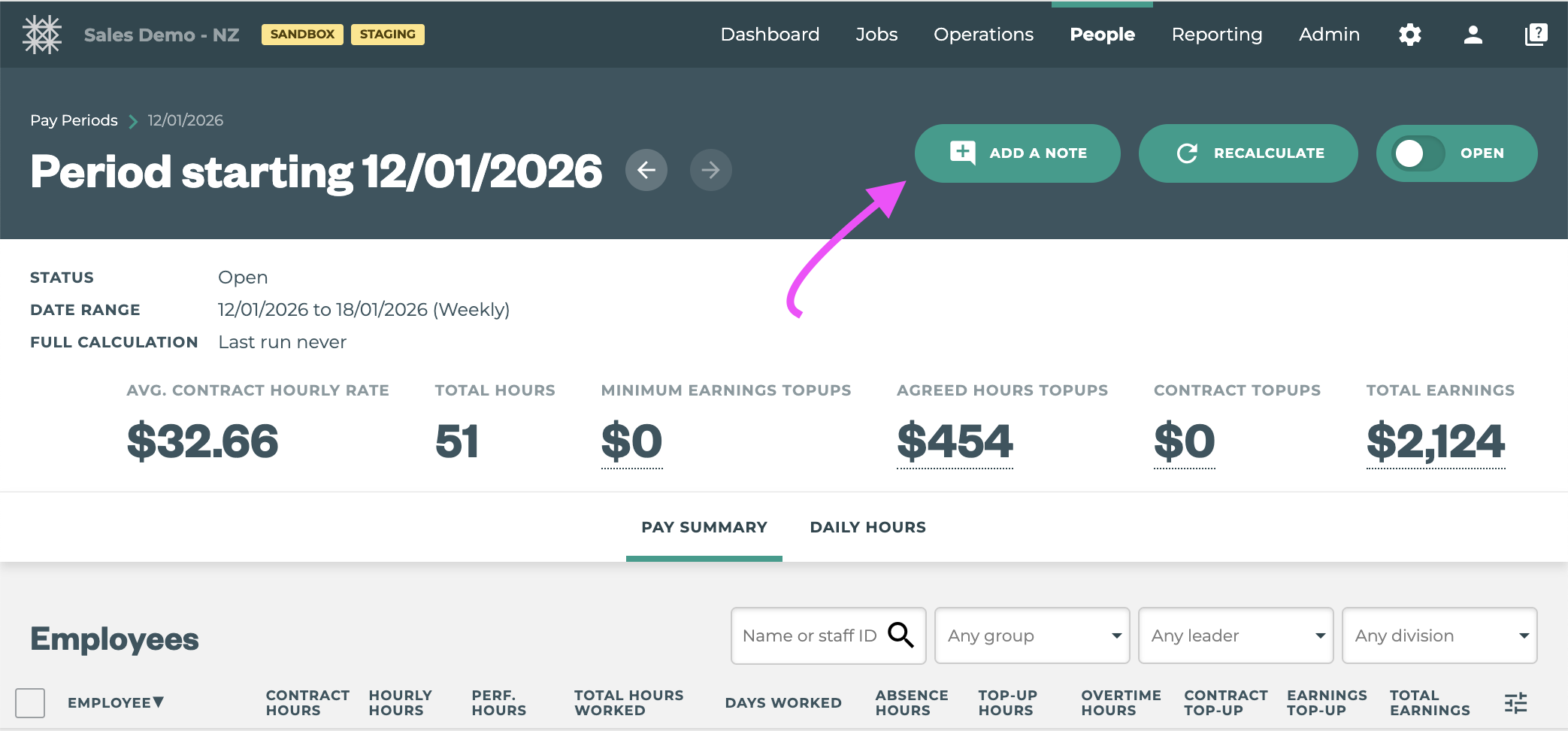
Pay Period Page table column and report values to come later
How to use…Payroll Reports Employee Status Filter
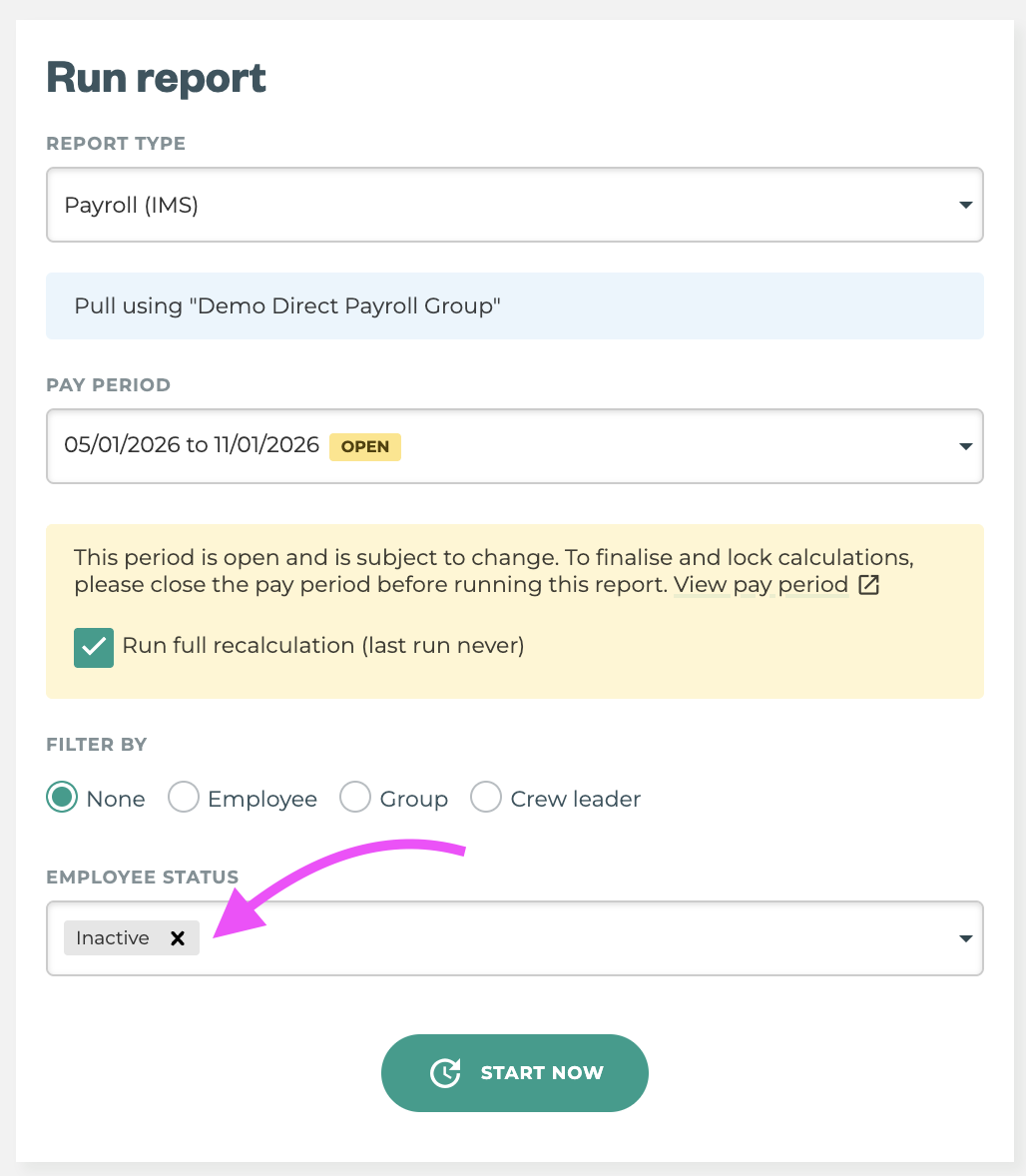
Payroll reports now include an Employee Status Filter dropdown. It defaults to both active and inactive employees but can filter for those leaving (inactive status) to run a final pay outside the normal cycle.
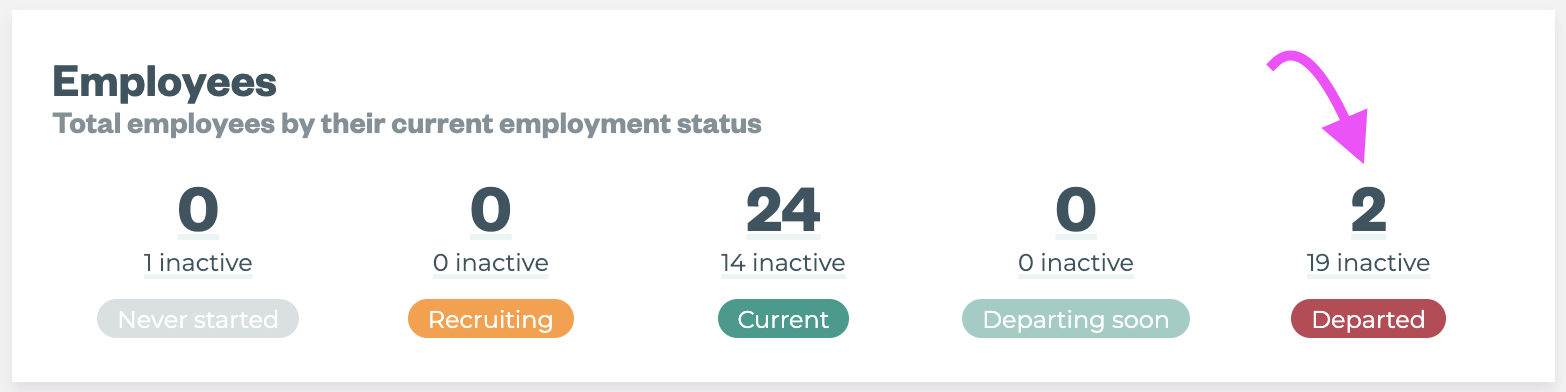
This feature complements our recent release of the Employment Period Status and Employee Widget on the Overview Dashboard.
Steps to use - Final Pay for Departing Workers:
-
Add Employment Period End Dates
-
Confirm all timesheets/jobs are entered for final pay
-
Use the Employee’s Widget on the Overview Dashboard to see Employees who are either:
-
Departing Soon, or
-
Departed
-
-
Use the multi-select or select all to Bulk Edit Employee Status to INACTIVE
-
Navigate to the Open Pay Period
-
RECALCULATE the pay period
-
Check Wages for your departing employees are as expected
-
-
Navigate to the Reports Page, and select your Custom Payroll Report
-
Use the Employee Status Filter to Select INACTIVE Employees
-
-
Run the Report and check that wages for the employees are reported as expected before importing to your selected payroll provider.
Groups may still be required if multiple final pay runs need to be run within your pay period.
Make sure to use the “Run full recalculation” option before running the report to make sure Tātou calculations relating to employee payroll are completed before running payroll using this feature.
Steps to use - for Workers on the Normal Pay Period:
-
Complete all pre-payroll checks as normal
-
Close the Pay Period
-
Navigate to the Reports Page, and select your Custom Payroll Report
-
Use the Employee Status Filter to Select ACTIVE Employees
-
How to use…Employee Season Number:
To update the Employee Season Number for existing employees, use the Office App:
-
Editing the Season Number in an Employee’s Current Employment Period, or
-
Using the Bulk Import Feature →
current_employment_period_season_number
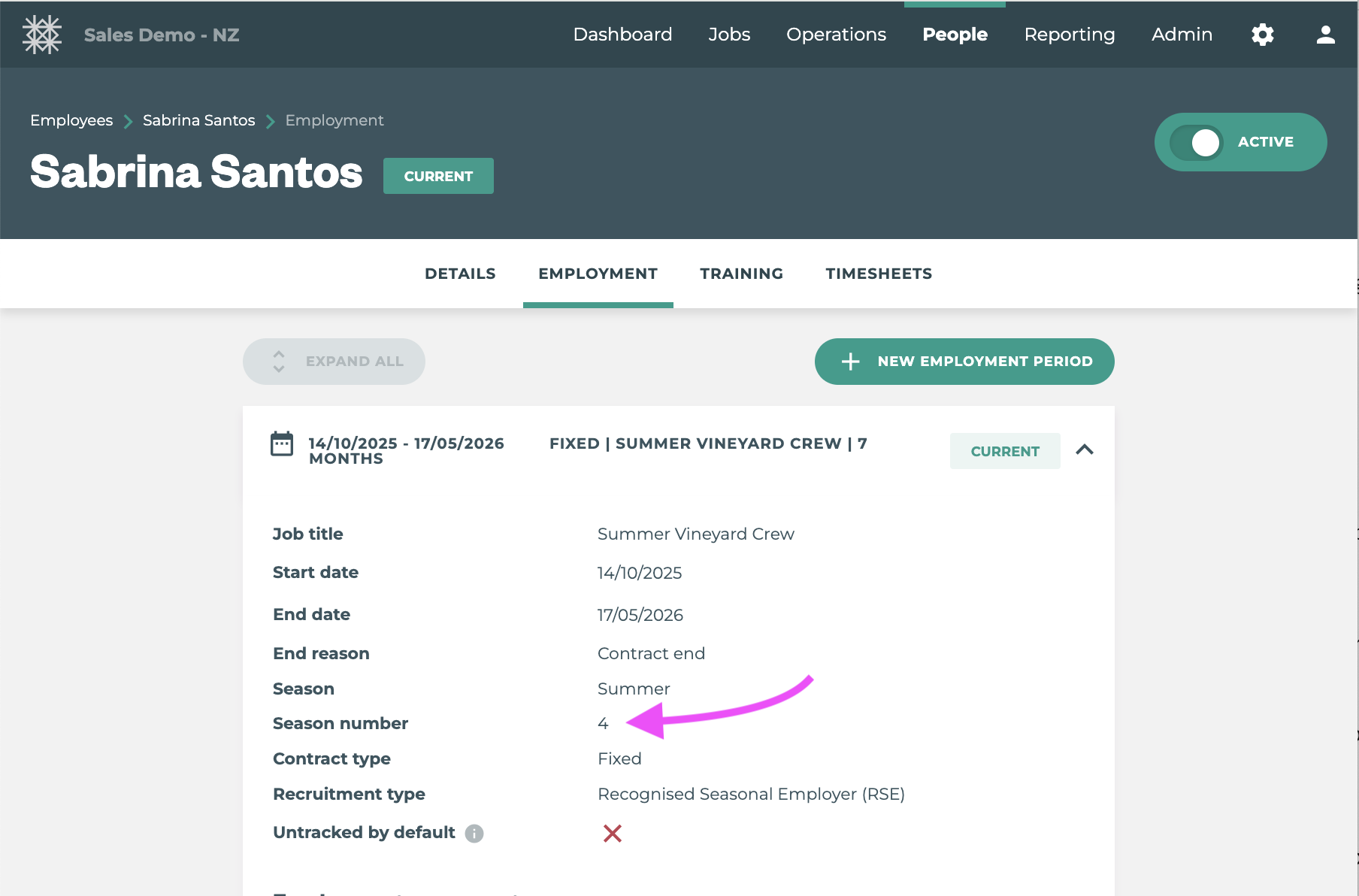
For New seasonal employees with multiple Employment Periods, this value will auto calculate if left blank.
How to use…New Block Data Values:
Update these values by editing the Block in Tātou Office App or adding them to the Bulk Import template.
Note: These values are not editable. If you do not see a value you would like to use available, please send your feedback to support@tatou.app
Edit Block Details:
Bulk Import:
-
Run a Clients (including locations, blocks and rows) Export
-
Edit values for:
-
pruning_stylevalues include:-
klima -
spur -
sylvoz -
full_job
-
-
cane_quantityvalues include:-
1,2,3,4,5or6
-
-
Bulk Import Template requires Row value columns. If your blocks do not have Rows, using the Clients (including locations, blocks, and rows) Export will not have the Blocks Listed.
How to use…Tag and Track Custom ID Tags
When generating QR codes for Tag and Track users will have the option to select their Data Source:
-
Employee Default Tag ID, or
-
Custom Tag ID
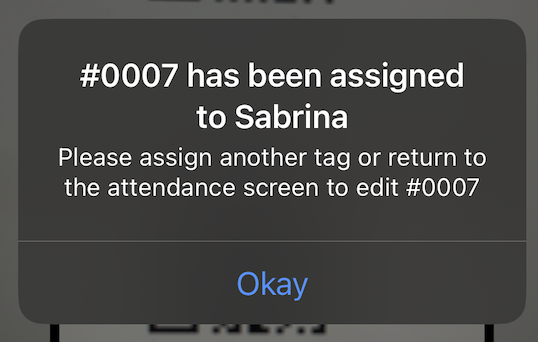
If you have used Tag and Track Previously, employees may still have Default Tag IDs in their Employee Profile. You can still use Custom Tag ID’s and assign Tags to Employees on the Job in Tātou Field App, however, you may run into a situation where assigning a tag that is an Employee’s Tag Default ID issues a Tag Already Assigned Error.
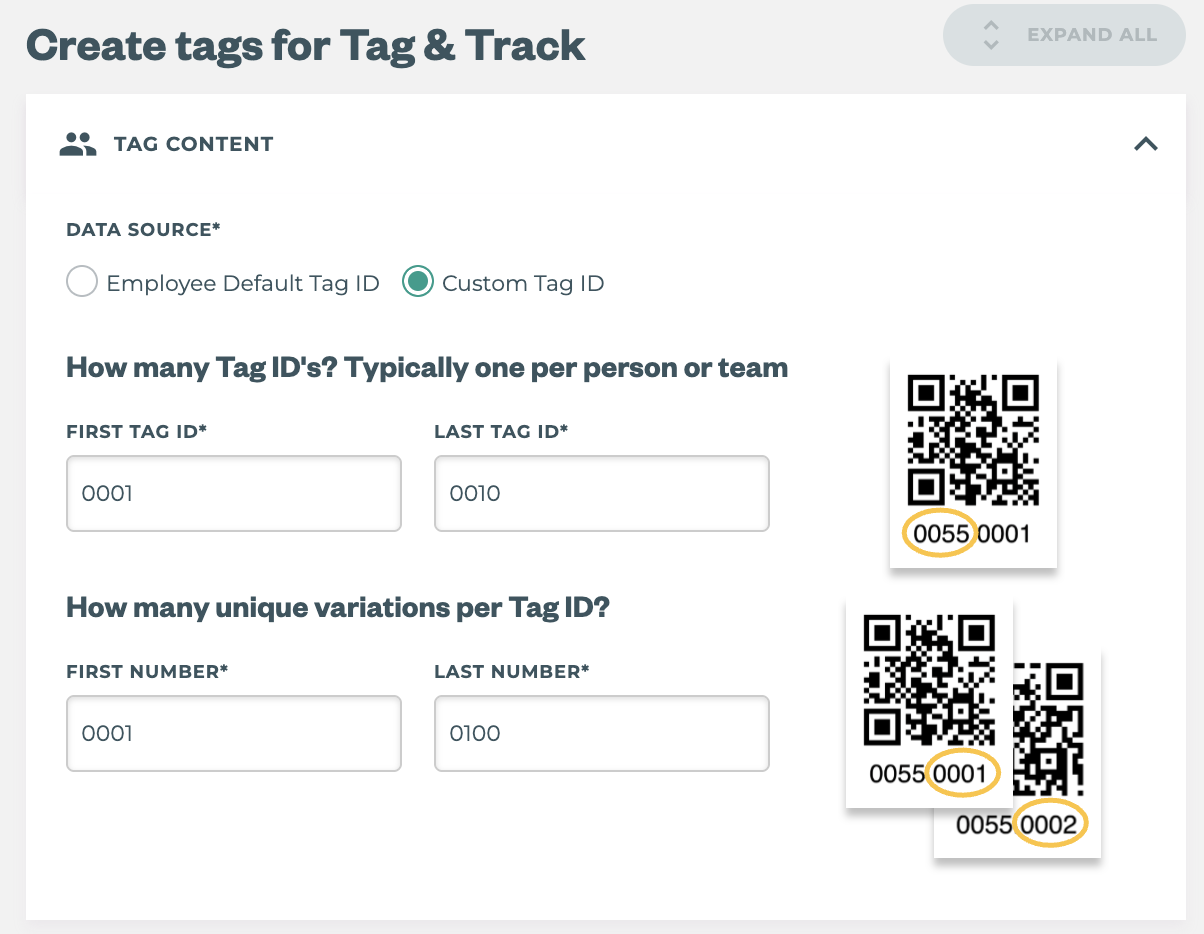
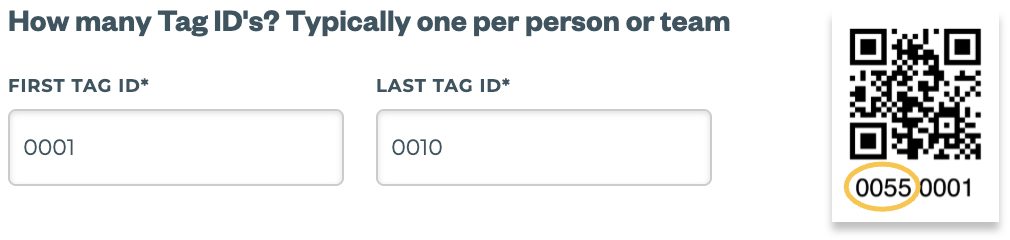
Terminology Review: Tag and Track Custom Tag IDs
First & Last Tag ID: This is the unique number given to an individual or picking team.
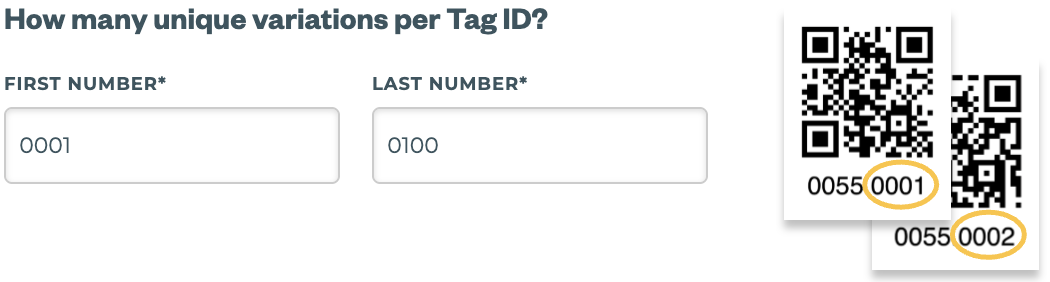
First & Last Tag Number: This is combined with the Tag ID to create a unique tag for unit tracking, which can only be SCANNED ONCE per Job.
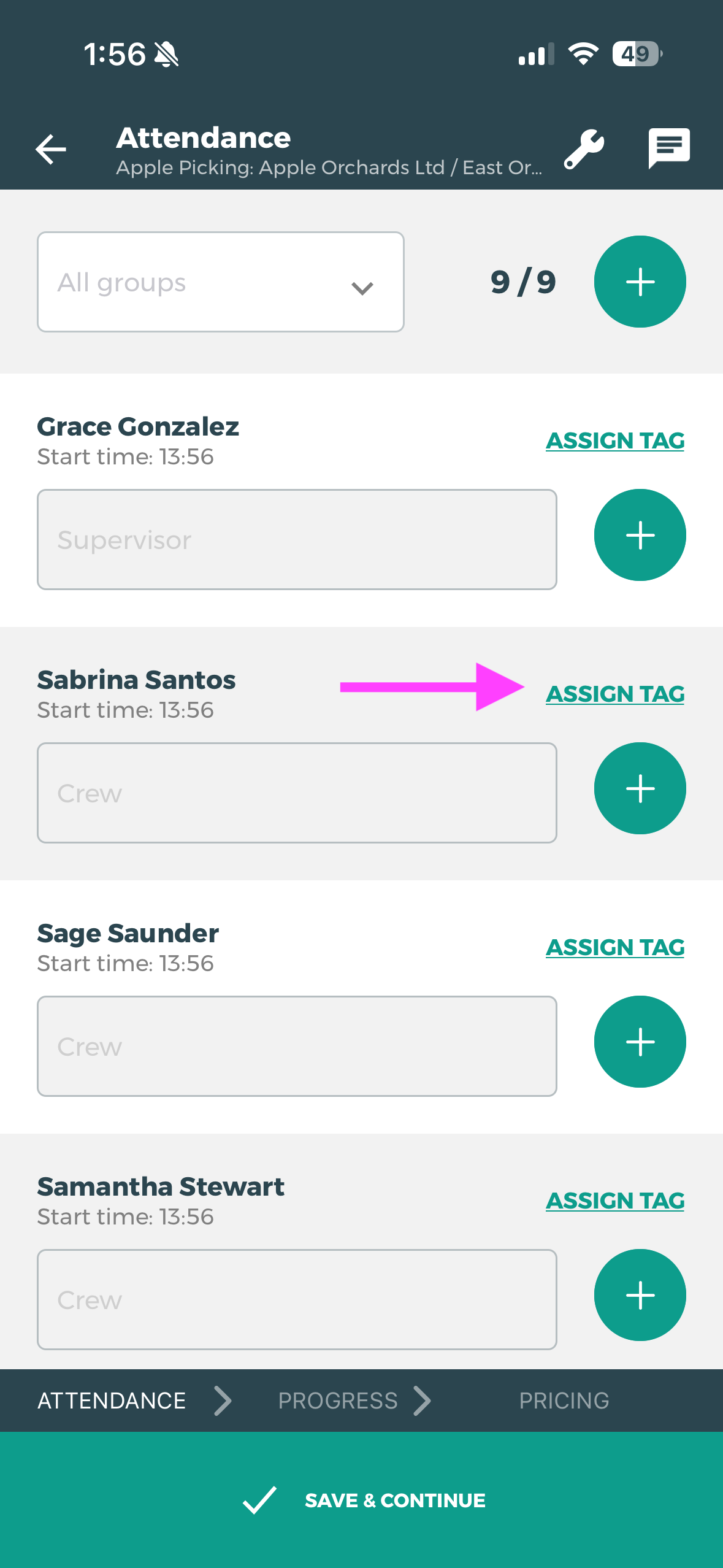
Steps to Assign Custom ID Tag and Track Tags in Tātou Field App:
-
Start Tag and Track Job
-
Complete Tag and Track Settings
-
On Job Attendance Screen:
-
Tap ASSIGN TAG on the Employee Line
-
Scan ANY TAG with the Tag ID you wish to assign
-
Repeat for the other Employees on the Job
-
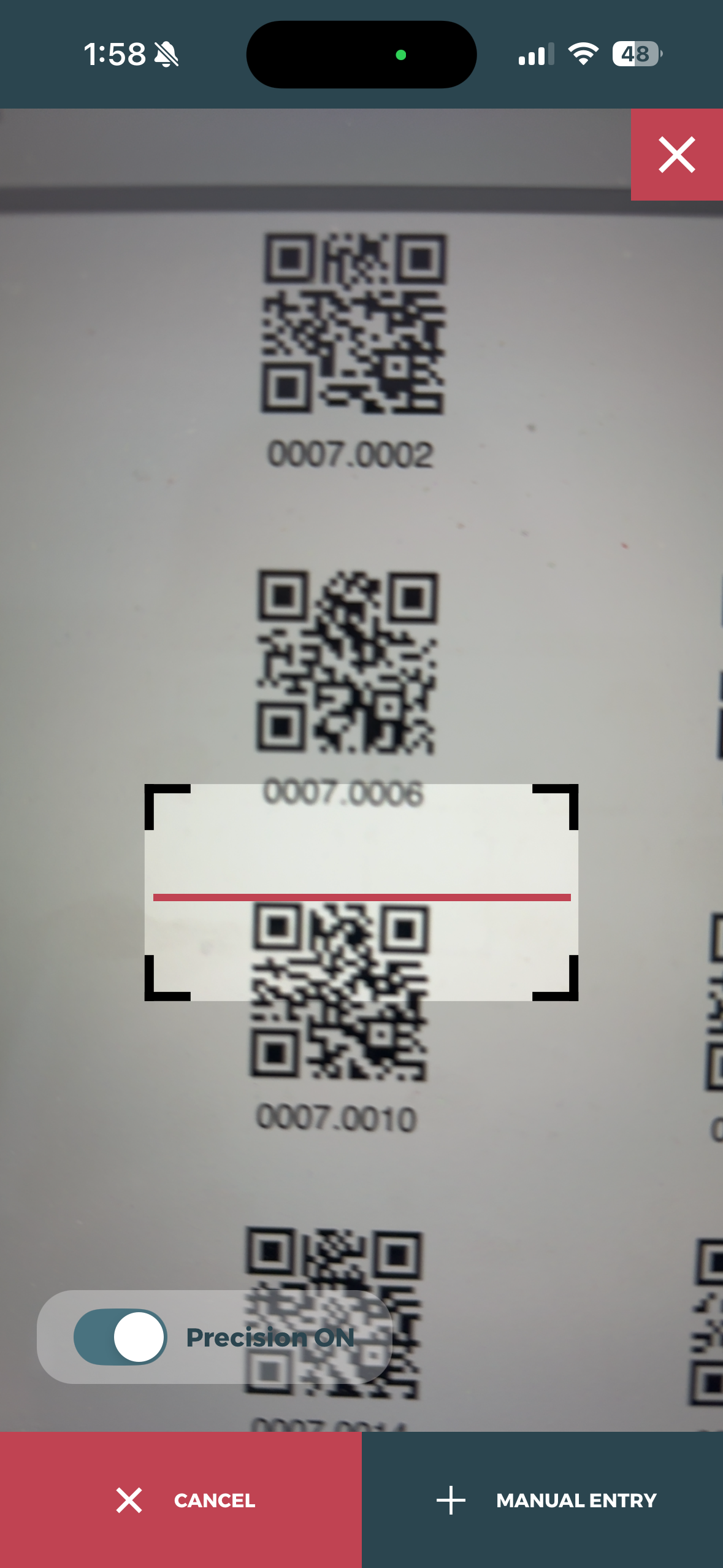
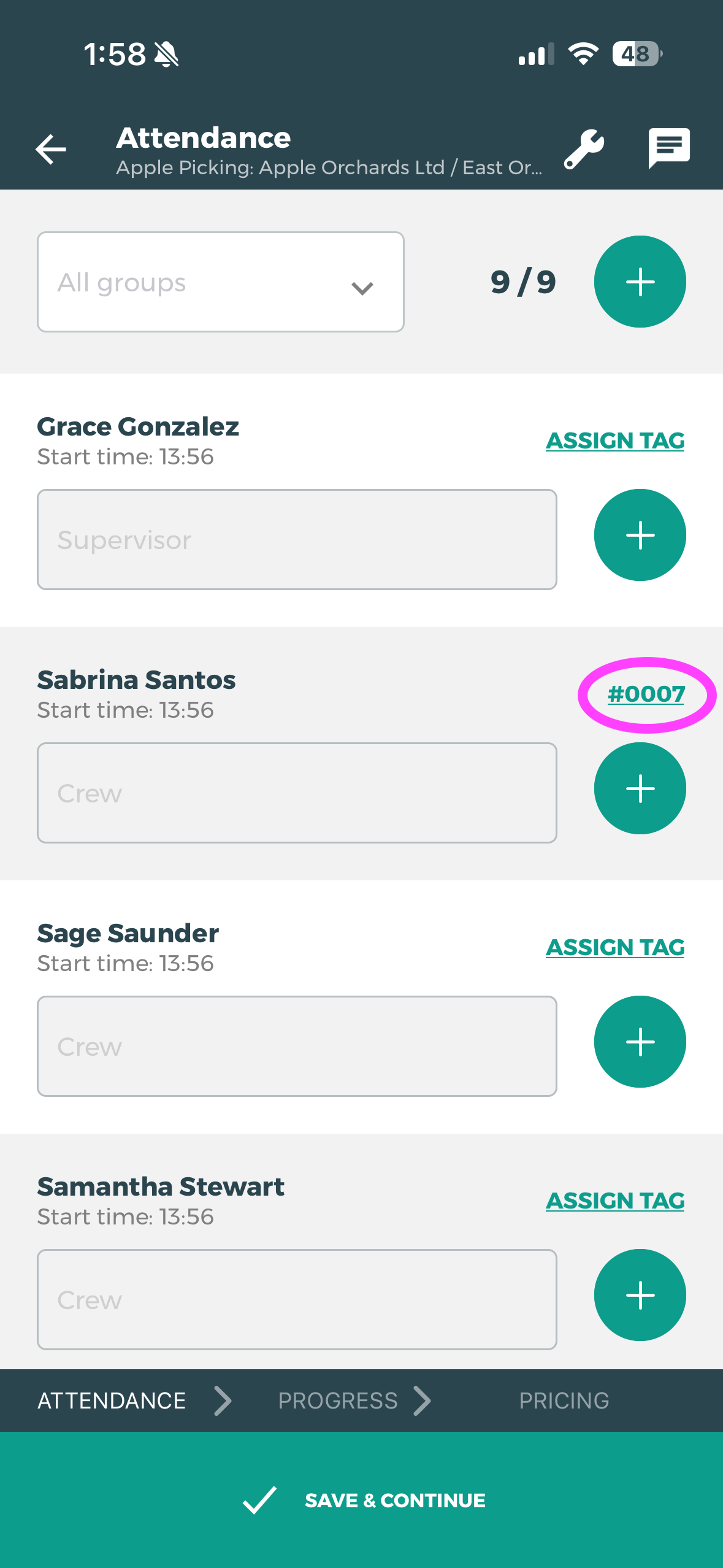
Using the example above - if Tag ID 0007 was scanned for another employee the following error would alert the user that the Tag ID is already assigned.