
What’s Changed?
NEW FEATURE: We’ve got some exciting news for customers who’ve requested Allowances, Bonuses and Reimbursements to be captured in Tātou.
Employee Expenses
Tātou has expanded the Expenses that can be tracked on a Job to Employee Expense. These are Expenses that contribute to Payroll in addition to Job Costings, and may or may not be included in Invoicing.
This feature is turned on by request. Get in touch to learn more support@tatou.app
Expense Types: Allowance vs Reimbursement
Seek professional advice to ensure reimbursements and allowances are set up correctly. They are treated differently for tax and employee entitlements. Without clear agreements, records, and evidence of the business purpose, payments intended as reimbursements may be reclassified as taxable allowances, with wider implications.
|
Type |
Allowance (includes bonuses due to same rules) |
Reimbursement |
|
|---|---|---|---|
|
Definition |
Set extra payment to cover expected costs or compensate for work conditions/skills. Employee doesn’t have to prove exact spend. |
Additional earnings aka Bonus, tied to pre-agreed performance criteria (speed/quality) or undefined at the employers discretion. |
Paying an employee back for actual work expenses they incurred; usually supported by receipts or a reasonable estimate. |
|
Example usage |
|
|
|
|
Included in pay earnings |
|
|
|
|
Included in invoicing |
|
|
|
|
Incur additional costs % |
|
|
❌ |
|
Impact minimum earnings top-ups (NZ only) |
|
|
❌ |
How do I use it?
Required Action to enable Employee Expenses
This feature is turned on by request. Get in touch to learn more support@tatou.app
-
Tātou Office App
Refresh Browser after Release > Add Employee Expenses
-
Tātou Field App
Update Tātou Field App
-
Payroll Reporting
Update Custom Payroll Report
Employee Expenses must first be added in Tātou Office App. When creating these expenses Admin have the ability to SHOW IN FIELD APP, which provides flexibility to start using the feature without rolling it out to the Field App to start.
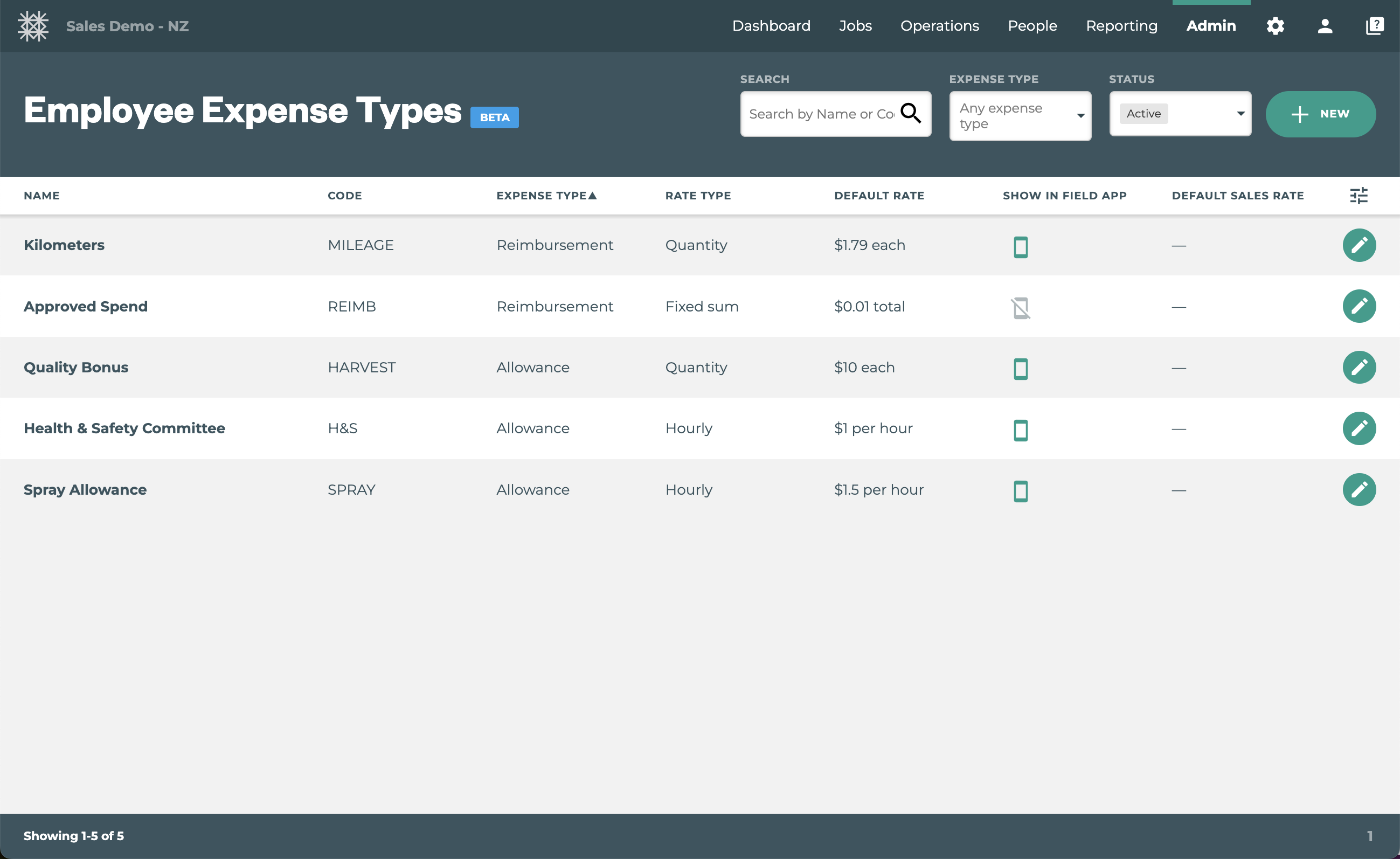
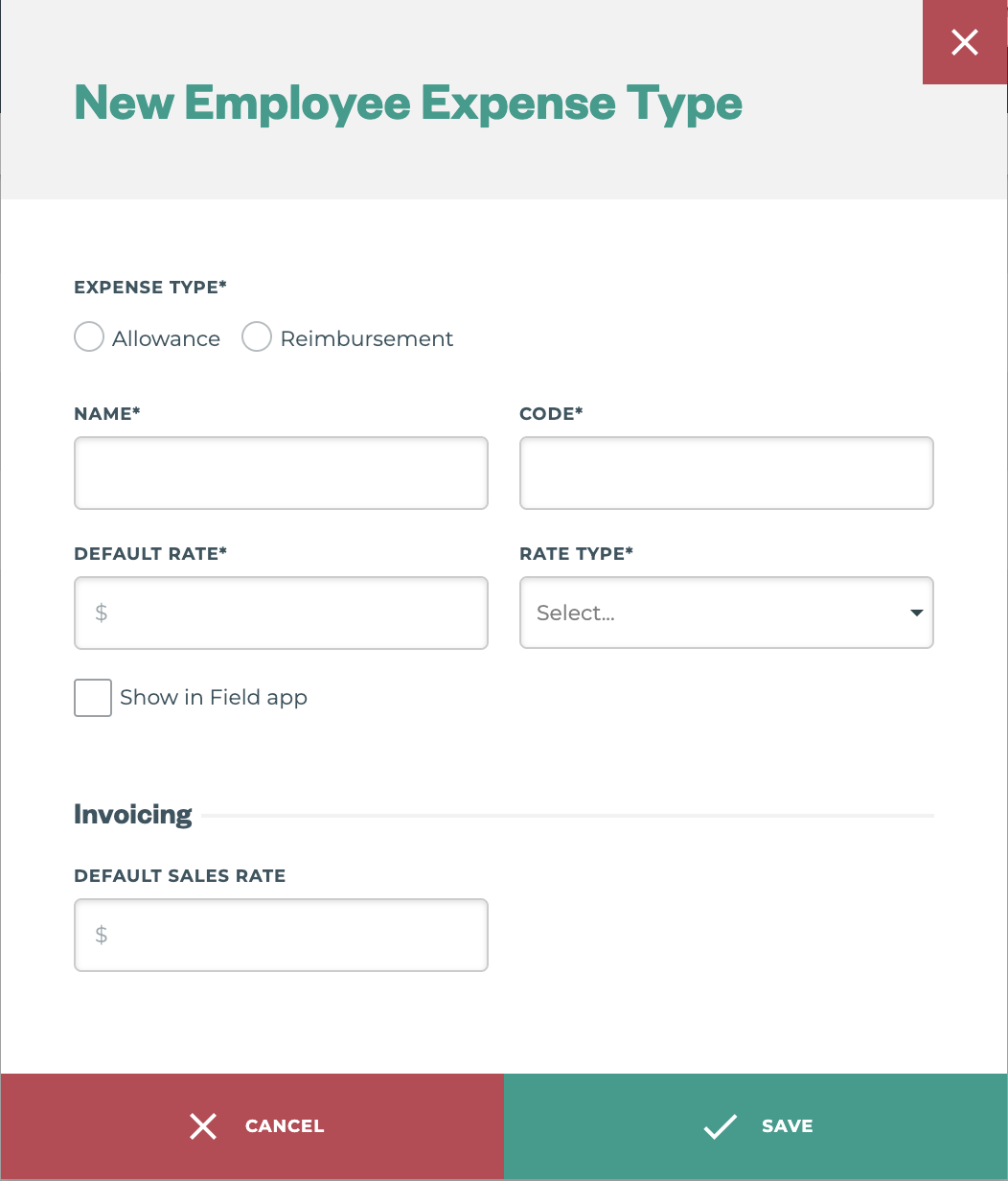
How to…Add Employee Expenses in Tātou Office App
-
Click the + New button →

-
Fill in the popup window details
-
Click the Save button
Match Name/Code to Payroll System Values
Default Rate must be greater than $0.00 - If an employee expense does not have a set value you can add $0.01 which can be edited later.
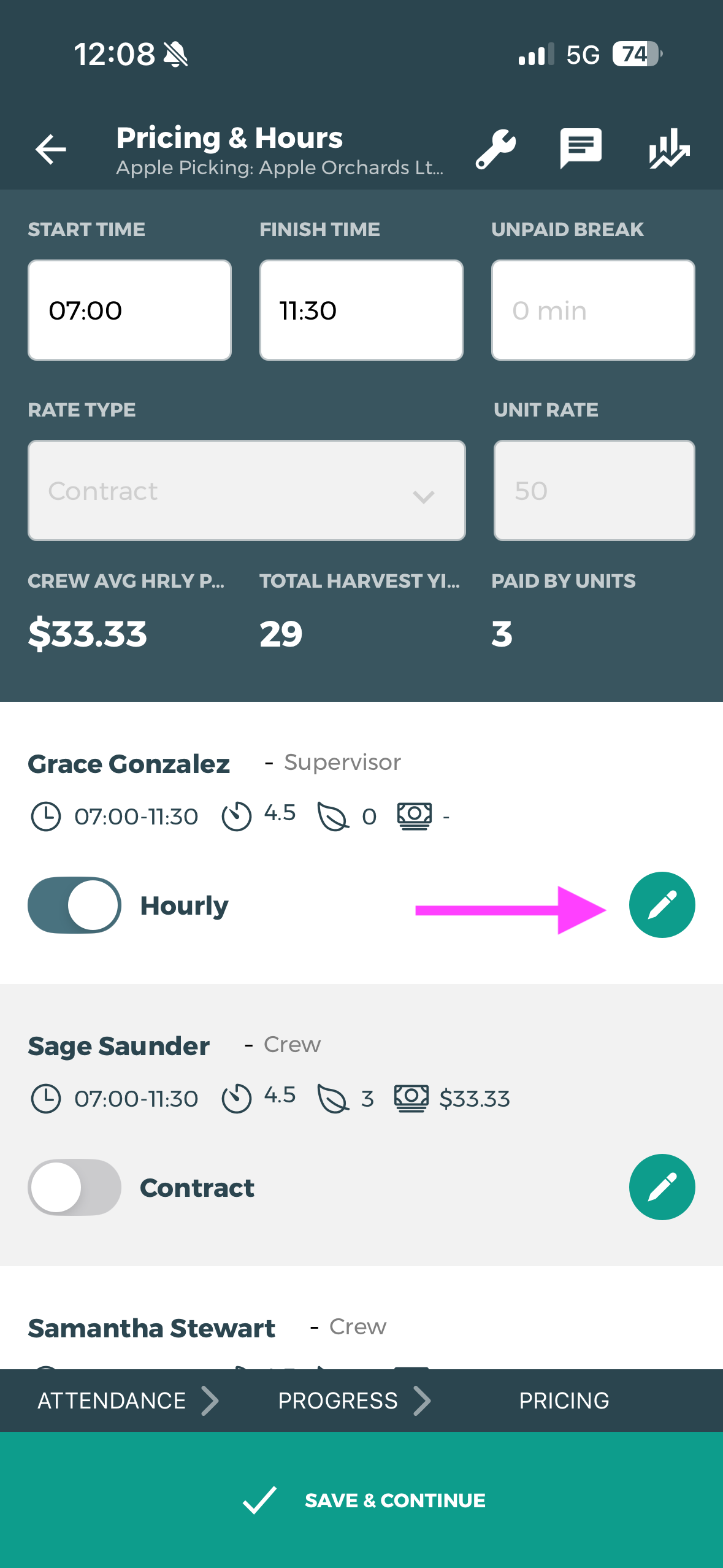
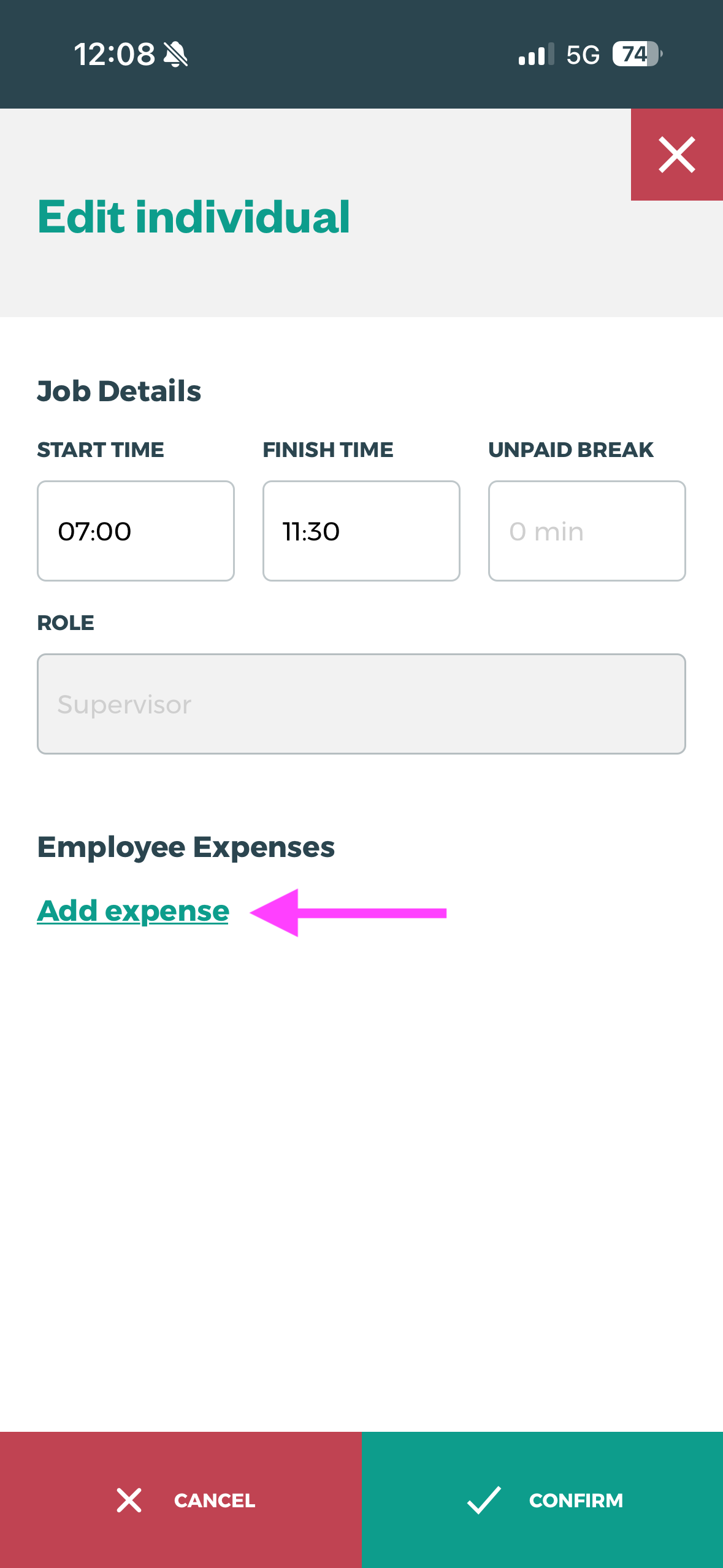
How-To Track Employee Expenses
How to…Add Employee Expenses to a Job in Tātou Field App
-
Make sure Tātou Field App is Updated
-
Reload Data
-
Track Job as normal
-
On Pricing Screen:
-
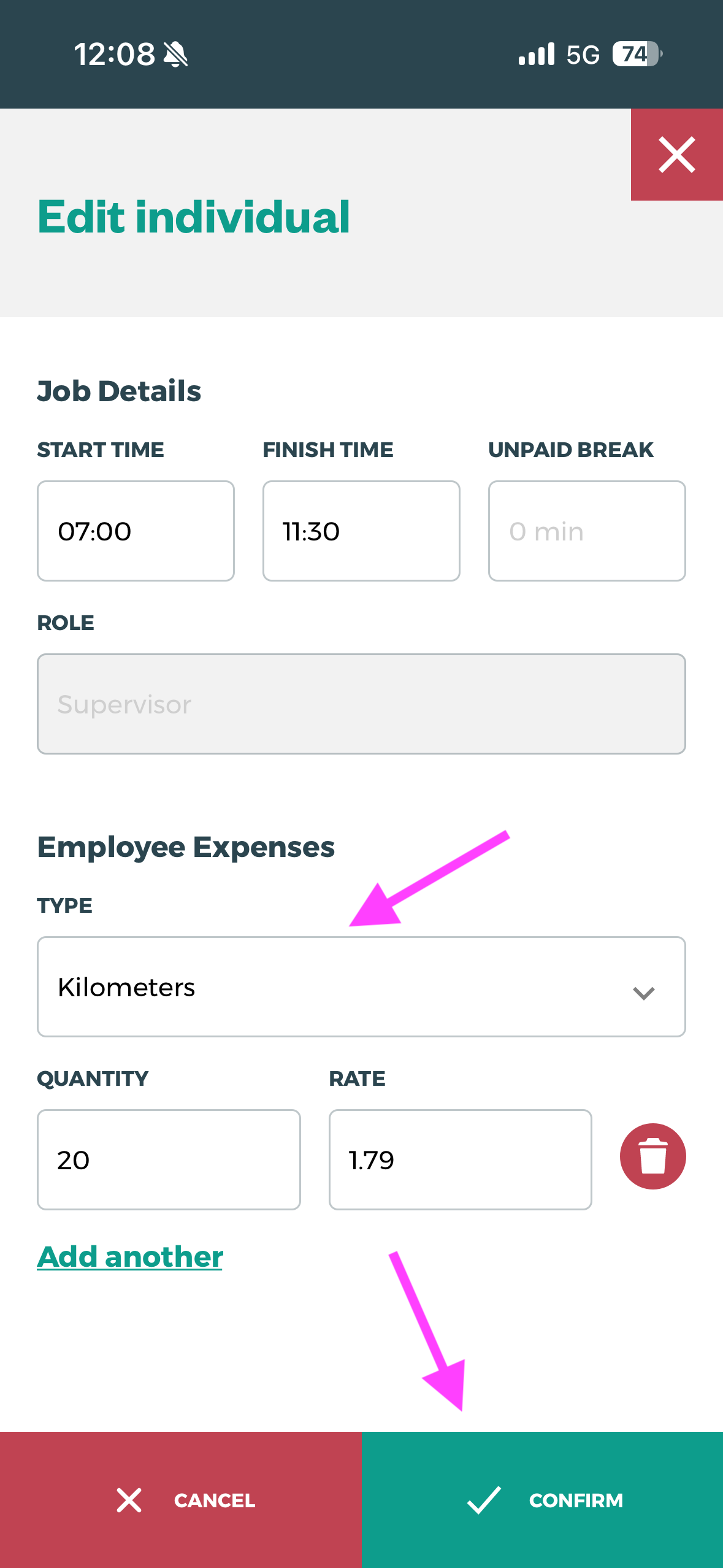
Tap the Edit Timesheet →

-
Tap Add Expense
-
Select Expense from the drop down list
-
Tap to add Quantity
-
Tap the Confirm button to Save
-
|
|
|
Notes on Employee Expenses Defaults
-
Employee Expense Rates are only editable IF the employee has Set Rates Permissions
-
Quantity will auto populate based on the Rate Type Associated with the Employee Expense - but can be edited in the event that the Quantity does not match the automated value pulled from the Job.
How to…Add Employee Expenses to a Job in Tātou Office
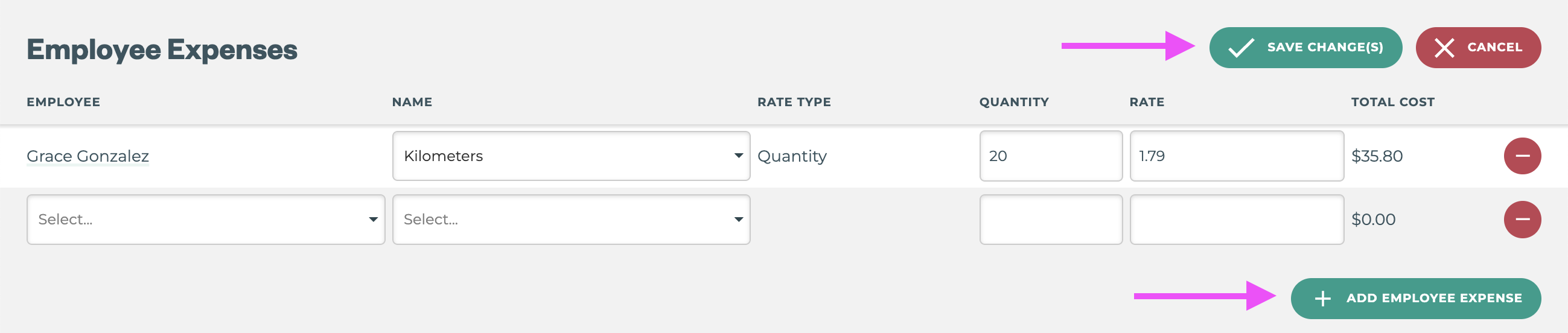
Employee Expenses are located on the Summary Tab of each Job, but are in a separate section to the Timesheet - unlike in Tātou Field App.
-
Click the + Add Employee Expenses button
-
Select the Employee from the Employee drop down
-
Select the Expense Name from the Employee drop down
-
Enter the Quantity
-
Check the Rate
-
Click the Save Change(s) button →

How to…DELETE Employee Expenses from a Job in Tātou Office
-
Click the Edit Employee Expenses button
-
Click the Red Delete Icon →

-
Click the Save Change(s) button →
How-To: Pay Employee Expenses
Employee Expenses can be added to Custom Payroll Reports.
Organisations using Xero or Employment Hero Payroll Integrations - this will not be available through the integration in this initial release.
How to…Add Employee Expenses to your Custom Payroll Report
Employee Expenses will be reported on a daily basis in Custom Payroll Reports, but when this feature is turned on users will likely need to add Custom Logic ensure correct coding in their exports.
Employee Expense quantity (units) and rate will be applied to payroll reports, but unless the payroll report has specific columns users will need to use custom logic. For Example:
IF $row_type == timesheet_entry THEN [insert current value type]
IF $row_type == employee_expense THEN [select from value types available]
ELSE
How to…Add Pay Summary Row Type: Employee Expenses
Pay Summary Row $row_name: employee_expense reports $total value, and will report a value if your report includes a $total column, or custom logic is used to report $total for that specific summary row.
If your report has a $total column:
-
Click Edit Pay Summary Rows
-
Click + NEW
-
Select row type → Employee Expense
-
Add Summary Row Value(s)
-
Click Save Change(s)
If your report does NOT have a $total column:
-
Click Edit Columns
-
Custom Logic will need to be used to report because the summary row reports the total value of employee expenses reported for the pay period. Example logic:
-
IF $row_type == summary AND $row_name == employee_expense THEN $total
IF $row_type == summary AND $row_name != employee_expense THEN [insert value type]
IF $row_type != summary THEN [insert value type]
ELSE
-
-
Click Save Change(s)
-
Click Edit Pay Summary Rows
-
Click + NEW
-
Select row type → Employee Expense
-
Add Summary Row Value(s)
-
Click Save Change(s)
Always double check Payroll Reports after making any changes to ensure changes accurately match expectations. If you need any help with these changes please reach out to support@tatou.app
Value Changes:
Job Import
The Jobs Import will now distinguish between employee_expense and equipment_expense types
-
For customers currently using
equipment_expensein Custom Jobs Reports, these values will be updated as part of the release, but may need to be considered in future reports. -
For customers importing
expenselines in Job Imports, this value will need to be replaced withequipment_expense
employee_expense lines must have matching timesheet_entry lines in order to import.
This includes:
-
date, -
leader_staff_id, -
employee_staff_id, -
start_time, -
end_time, -
unpaid_break_durations -
unpaid_break_start_times -
rate_type, -
task, -
client, -
locationand -
block
Custom Reports and Value Types
|
Values |
Jobs |
Payroll |
Timesheet |
Invoicing |
|---|---|---|---|---|
|
|
✅ |
- |
- |
- |
|
|
✅ |
- |
- |
- |
|
|
✅ |
- |
- |
- |
|
|
✅ |
- |
- |
- |
|
|
✅ |
- |
- |
- |
|
|
✅ |
- |
- |
- |
|
|
- |
✅ |
- |
- |
|
|
- |
✅ |
- |
- |
|
|
- |
✅ |
- |
- |
How-To: Invoice Employee Expenses
-
Add Default Invoicing Rate to Employee Expenses
-
Track Employee Expenses
-
Add Jobs with Employee Expenses to an Invoice
-
Review Job Costings
-
Only Employee Expenses with Sales Rates will generate Invoice Lines
-
-
Generate Invoice Lines
-
Select Account
-
Save and Send Invoice when ready