
Data entry errors happen to the best of us, so knowing how to find them, how to fix them, and how to prevent them in the future can save users a lot of time.
Duplicate Timesheets
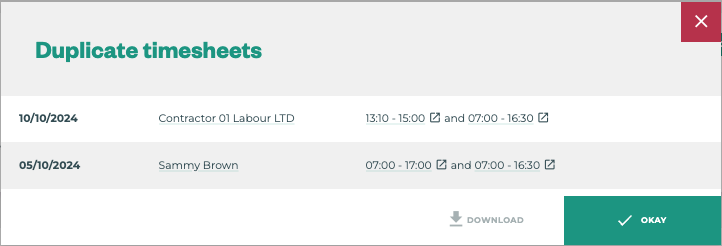
To investigate Duplicate Timesheets - start by clicking the number under the Duplicate Timesheet header, which will bring up the following view:
Steps to Correct:
-
Open all Jobs for an individual with overlapping times by clicking the underlined times - these open the Job Summary screens in new tabs
-
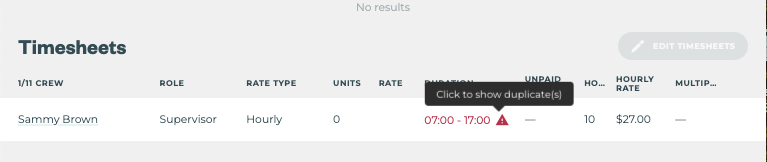
The timesheet(s) with overlapping times will be highlighted RED with a warning icon →
-
Review why the duplication has occurred by checking through the submitted Jobs details, and talk to the user who submitted the Job if the required corrections are not clear.
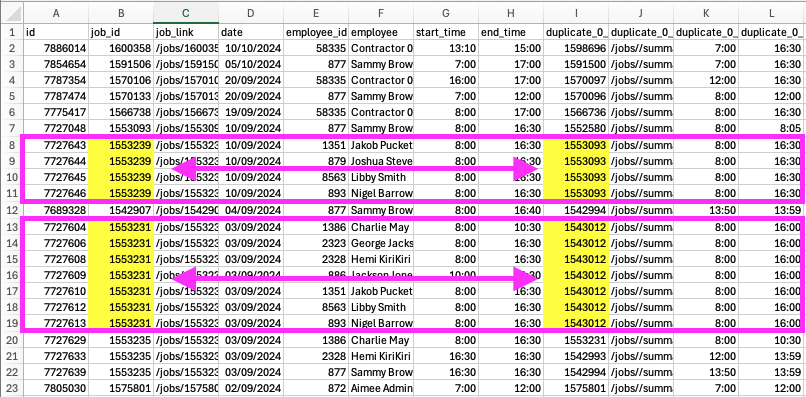
Pro-Tip: If the Duplicate Timesheets Reported is a large number, this can often occur when the error is across a whole crew. To quickly identify which and how many Jobs are affecting the total reported timesheet errors, DOWNLOAD the report to find out how many Jobs are creating the total number of duplicate timesheets.
As you can see below - there are a few Duplicate Timesheets that can be fixed by corrections made to only two jobs.
Contract Rate Job Errors
Below you will find a list of common data entry errors that occur with contract rate jobs, what these errors can impact, where to quickly check for them, how to correct them, and potential ways to prevent them in the future.
$0.00 Unit Rate
|
Downstream Impacts |
$0.00 hourly rate for contract work under pay crew who have completed units that would achieve a greater hourly rate than minimum, excessive unnecessary top ups, incorrect block costing |
|
|---|---|---|
|
Quickest Place(s) to Check |
Overview Dashboard → Data quality issues widget 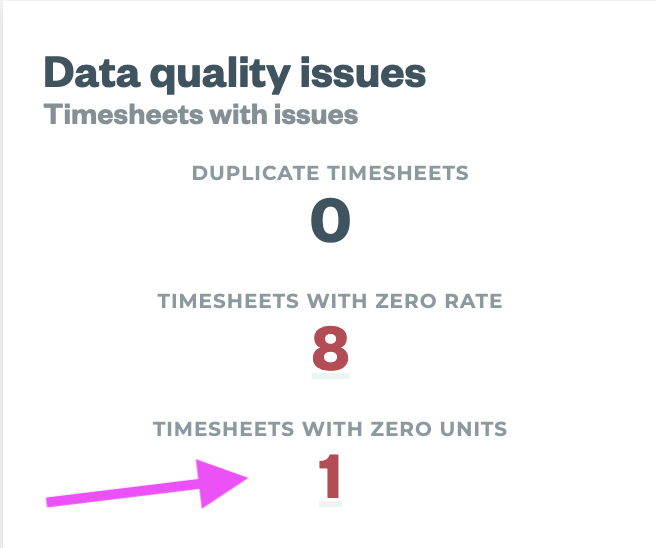
|
Reporting → Reports → Rates Report This report includes a list of all jobs between the date ranges selected with columns for Task, Rate Type, and Unit Rate $ right next to each other. Run the report and $0.00 Unit Rates will be pretty obvious |
|
How to Correct and Prevent |
Add Unit Rate to Job
|
|
0 Units Assigned on Contract/Performance Rate Timesheets
|
Downstream Impacts |
0 units assigned to worker timesheets for contract or performance work can impact |
|
|---|---|---|
|
Quickest Place(s) to Check |
Overview Dashboard → Data quality issues widget
|
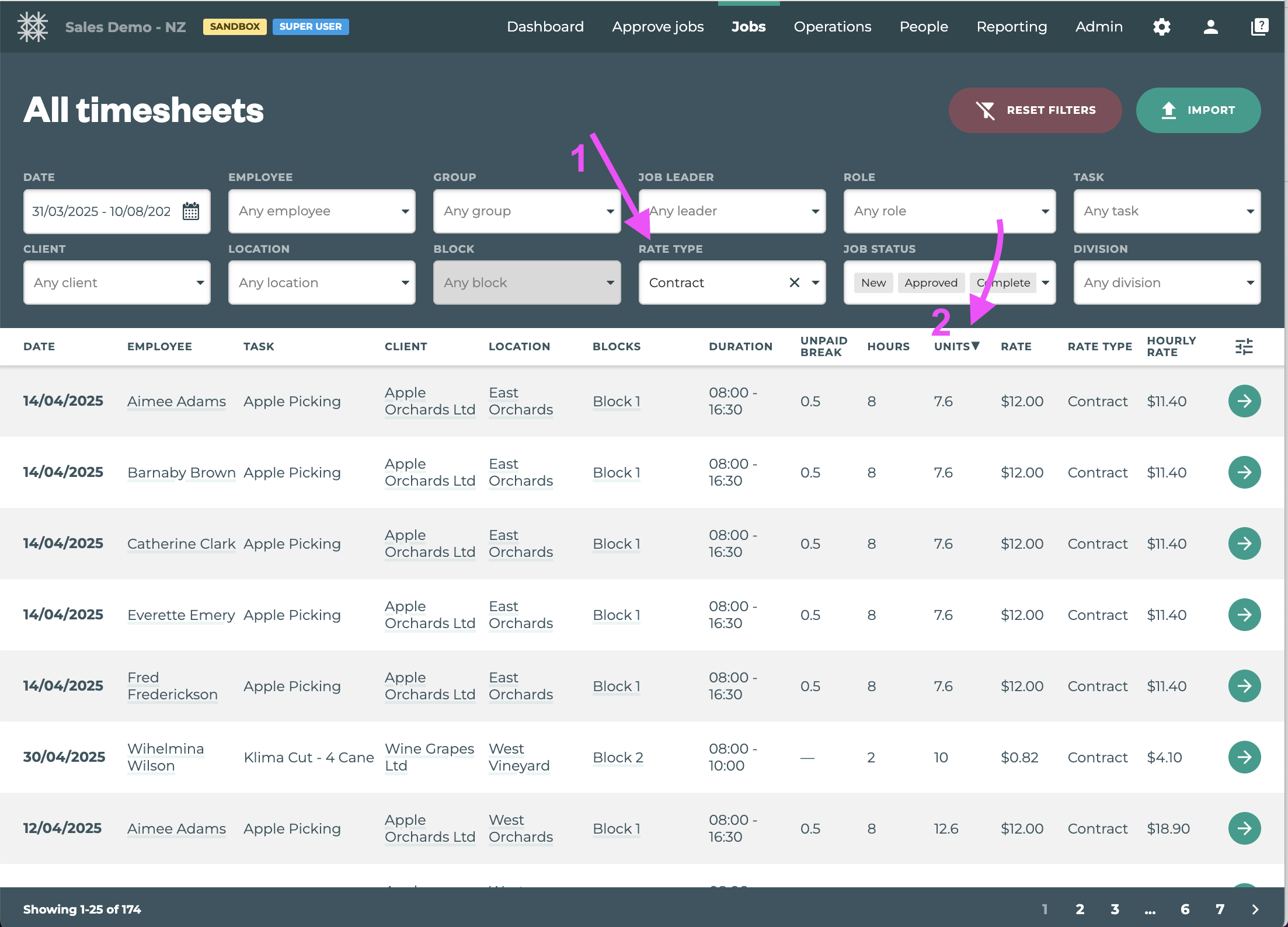
Jobs Menu → Timesheets
|
|
How to Correct and Prevent |
There are 3 potential solutions to this issue:
|
Hourly Timesheets on a contract Job → ROLES
All crew members on all jobs regardless of units tracked → Field App Settings → “Continue time from today’s last job”
Field App Training → 0 Units Worked Alert
|
|
|
|
|
Unit Rate Typos (e.g. $0.5 instead of $0.05)
|
Downstream Impacts |
OVER or UNDER pay crew potentially, hourly rates will be extremely high or extremely low, excessive top ups, incorrect block costing |
||
|---|---|---|---|
|
Quickest Place(s) to Check |
|
Reporting → Reports → Rates Report This report includes a list of all jobs between the date ranges selected with columns for Task, Rate Type, and Unit Rate $ right next to each other, as well as an Average Hourly Rate Column to quickly scan for issues relating to rates set too high or too low. Run the report and compare unit rates for the same tasks |
|
|
How to Correct and Prevent |
Edit Unit Rate in the Job
|
|
|

Daily Hours Split Across Multiple Jobs
|
Downstream Impacts |
Top Up and Block Costings - depending on the contract rate calculation period for your organisation |
||
|---|---|---|---|
|
Quickest Place(s) to Check |
|
|
Reporting → Reports → Rates Report This report includes a list of all jobs between the date ranges selected with columns for Task, Rate Type, and Unit Rate $ right next to each other, as well as an Average Hourly Rate Column to quickly scan for issues relating to rates set too high or too low. Run the report and compare unit rates for the same tasks |
|
How to Correct and Prevent |
Check with the person who entered the Job(s) to make sure the Start and Finish Times were entered correctly. If they:
Edit Start & Finish Times
|
When creating Jobs in Tātou Field App, can wait to sync jobs until the end of the day. Sometimes when crews are completing multiple different Jobs in a day, getting the exact time for each worker accurate to their movements is difficult. Block changes should be tracked as accurately as possible within reason, but as a final sense check, waiting to sync jobs allows the supervisor to review average hourly rates for the crew on each job, and be able to correct any incorrect times that are highlighted by hourly rates that are too HIGH or to LOW. Grouping Blocks on 1 Job If crews will be doing the same task at the same rate and location for the day, multiple blocks can be added to 1 Job. This eliminates the need to track exact block change times, and instead averages the units complete and resulting hourly rate over all blocks on the 1 job. |
|
