
Review and update roles using the Roles Export and Roles Bulk Import features!
Before You Start
Review current roles:
-
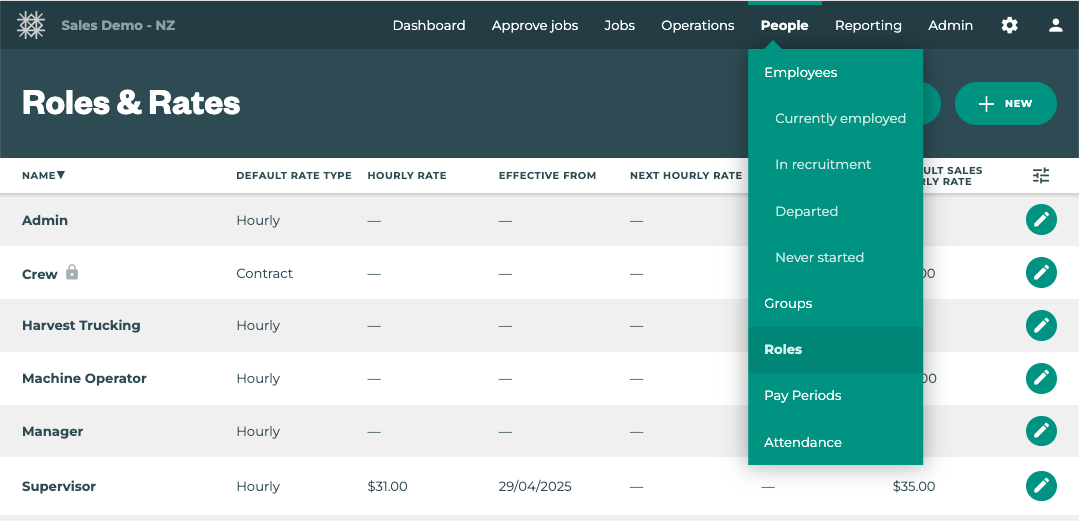
Select the PEOPLE menu
-
Select ROLES
-
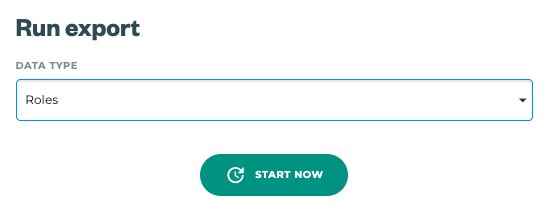
Select REPORTING menu
-
Select EXPORTS
-
Select the ROLES export & START NOW
Bulk Import Roles and Role Updates:
1. Download the template
Download a copy of our template spreadsheet file to get started. You can open and edit this file using a spreadsheet program such as Microsoft Excel, or Google Sheets.
Pro Tip: For updating existing Roles use the Roles Export file as a starting point for bulk imports.
2. Fill in the Details
Enter the details for your roles in your spreadsheet. Simply create a new row for each new role, with the appropriate details.
A list of the spreadsheet fields and what they mean can be found below:
|
Field Name |
Purpose |
|---|---|
|
name (required) |
Name of the role |
|
hourly_rate |
|
|
hourly_rate_effective_date |
Must be in the YYYY-MM-DD format |
|
default_rate_type (required) |
Default rate type for timesheets using this role
|
|
default_sales_hourly_rate |
|
The "hourly_rate" columns have restrictions that can cause import errors:
-
rates can now be BACKDATED - up to 2 weeks when pay periods impacted are open
-
rates cannot be set below your Organisation Minimum Hourly Rate in Settings
Roles may set default rate type for an employee, and can apply an hourly rate when roles are selected on jobs, but it’s important to remember Hourly Rate Rules apply, and Hourly Rates applied through Roles are not used for top ups on contract or performance rate jobs.
3. Import Changes
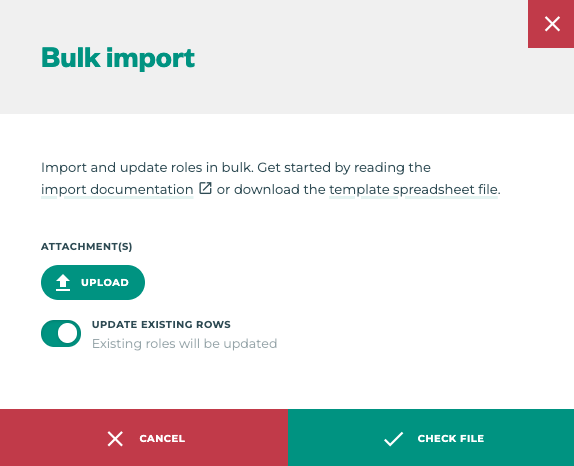
Importing Roles works just like any other Bulk Import tool.
-
Click the Import button on the Roles page
-
Attach the import file
-
Use the Toggle to SKIP Exisiting Roles, or UPDATE Existing Roles
-
Click the “Check File” button
-
Click the Save & Reload button to see changes
Always double-check your import data is accurate and matches the import template exactly. Bulk importing updates a lot of data at once and cannot be undone.