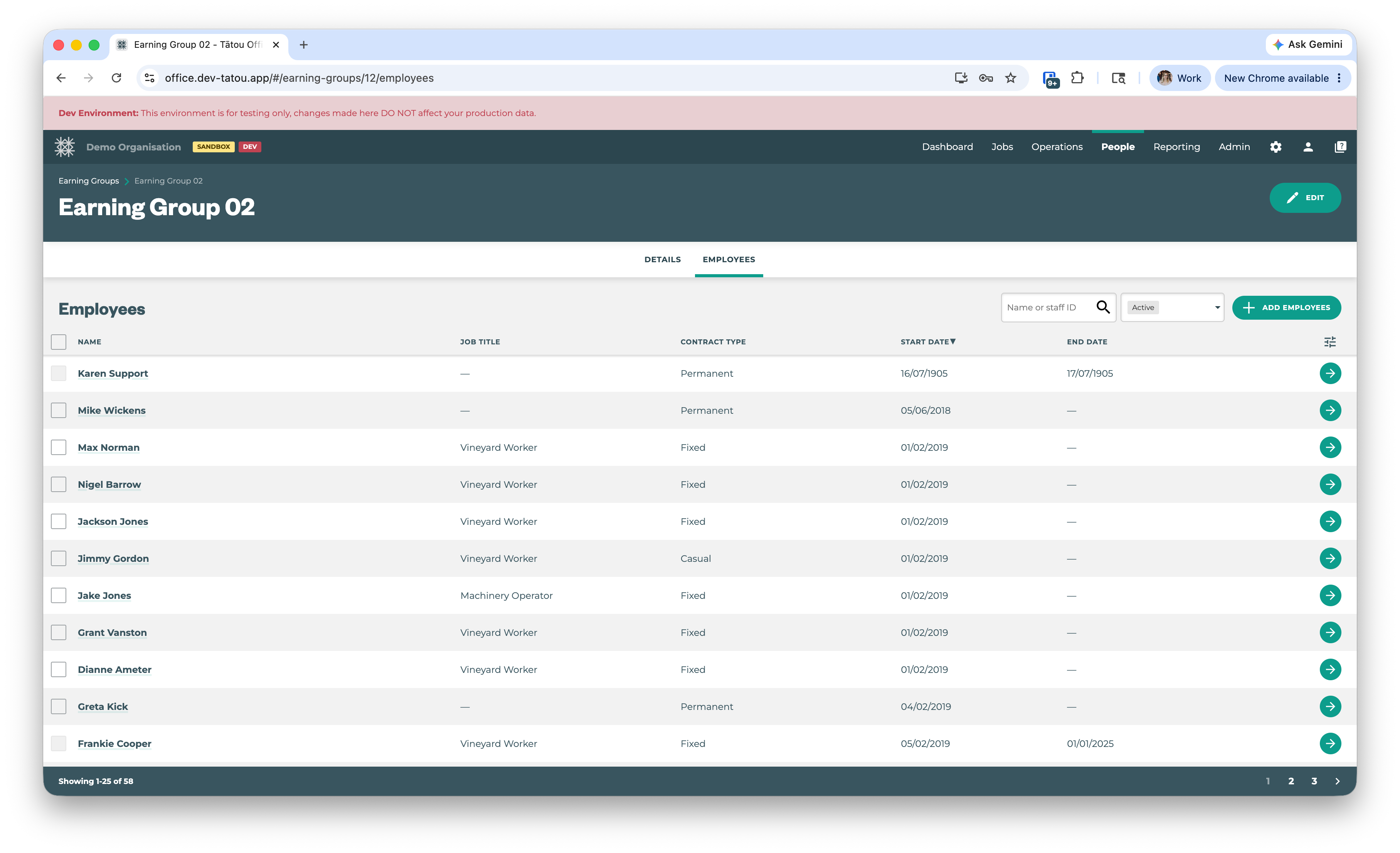
Earning Rules standardise the schedule-related settings (work patterns, hours, top-ups, overtime) so employees with the same working arrangement can share one set of rules, instead of managing several separate fields.
On the Earning Rules page, users with Office App permissions can create, manage, and review Earning Rules to fit the needs of your employment agreements.
All Employment Periods must be linked to an Earning Rule
Viewing your Earning Rules
The Earning Rules table is the best place to compare and review your Earning Rules. Toggle the columns to focus on information that matters to you. For example, Australia is very Overtime heavy but in New Zealand these columns could be hidden completely.
Pro Tip - use the 
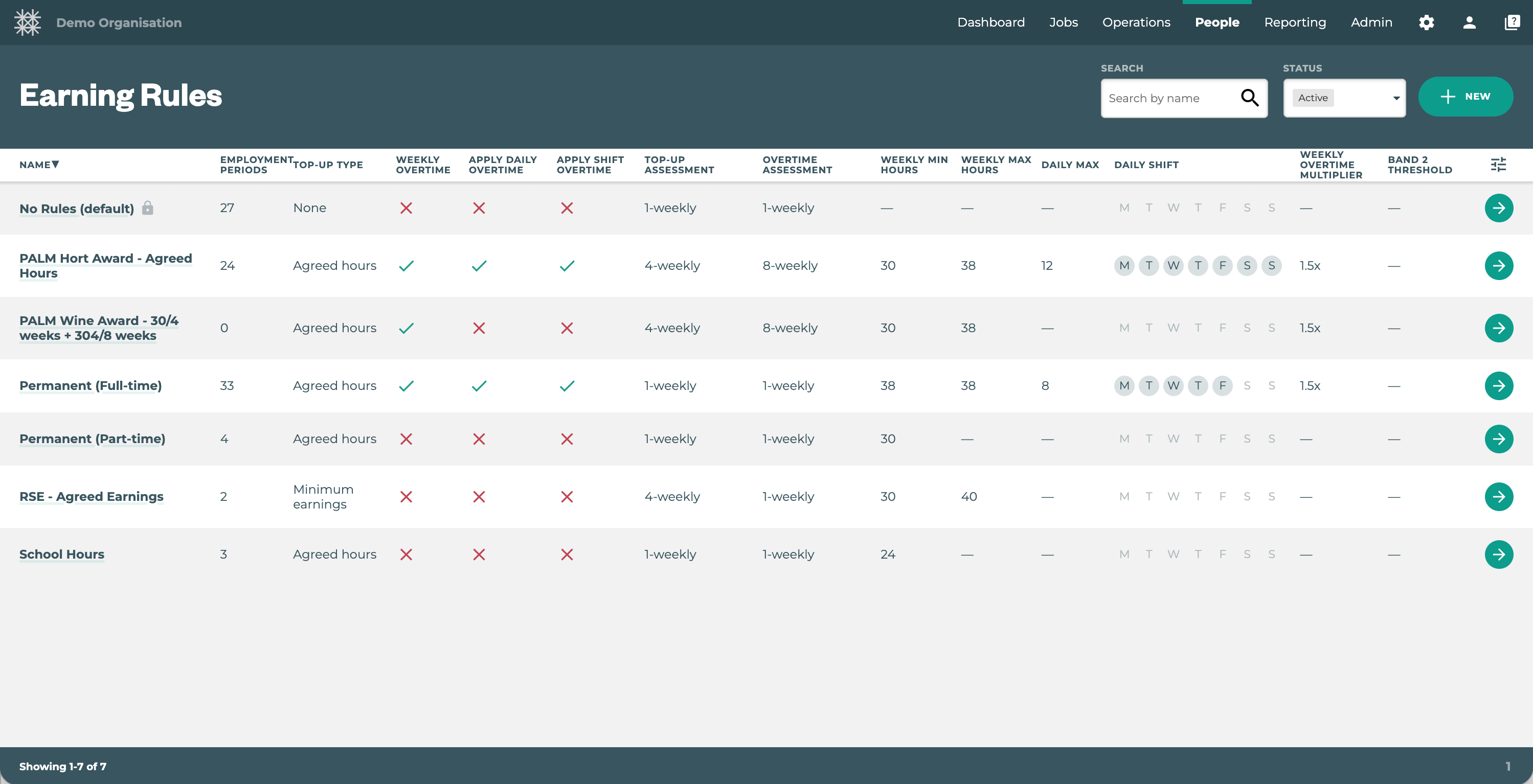
Key Features:
-
One Earning Rule per Employment Period: Employees can be assigned one earning rule at a time, but this can change with each Employment Period.
-
Earning Rules are mandatory per employee, per employment period
-
Earning Rule creation: Click the “+ NEW” button

-
Earning Rule management: Click the “→” button to open the earning rule settings and the assigned employment periods.
Managing your Earning Rules
Work patterns have been split into two sections; Weekly workload and Daily workload. Please seek advice from an employment lawyer to ensure you set you rules up in accordance to the employment agreements and your government policies.
Pro Tip: Use meaningful names e.g. Permanent (Part-time), Hort Award Casual, RSE Scheme 2026 etc. When new Employees are recruited they can quickly be assigned the correct group with confidence.
What is included in an Earning Rule
|
WEEKLY WORKLOAD 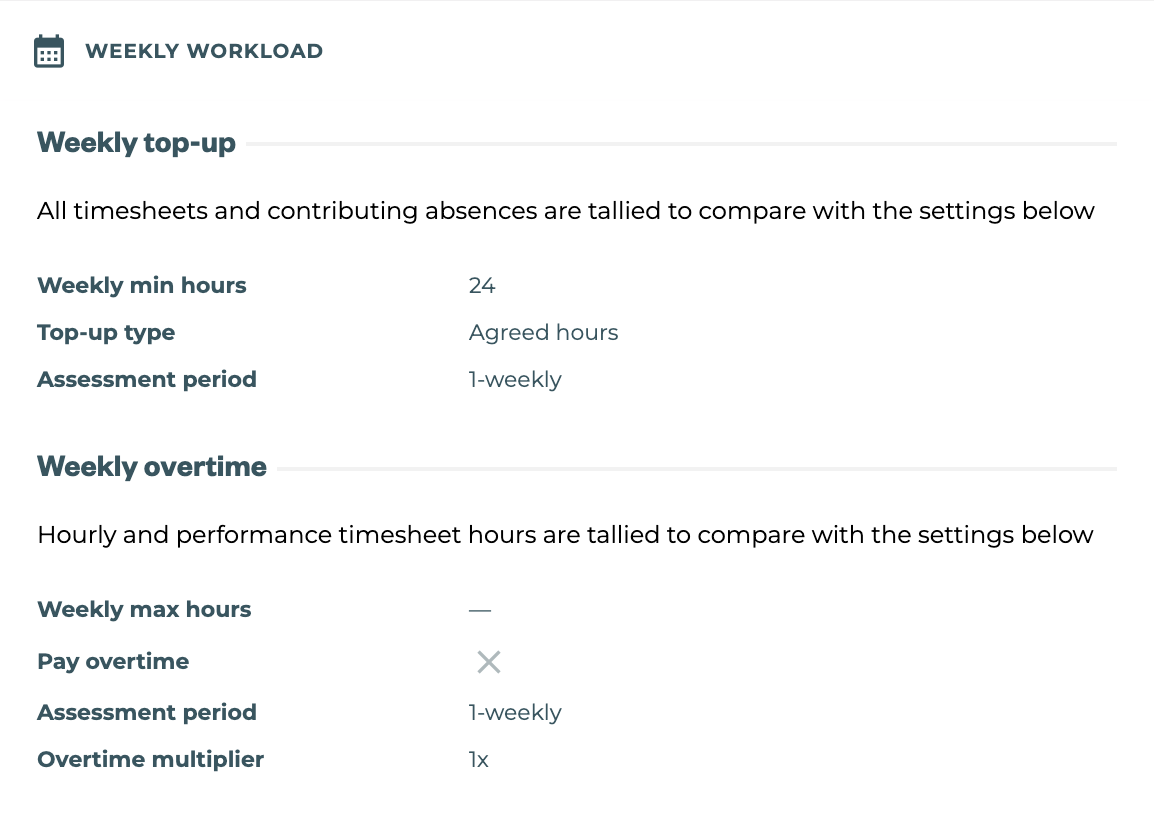
|
|
|---|---|
|
Weekly top-up |
|
|
Weekly minimum hours |
Minimum number of hours in timesheets and contributing absences each week. Used in Pay Period alerts, and if configured, top-ups.
|
|
Top-up type |
How to determine the top-up threshold.
|
|
Assessment period |
The number of weeks to average across.
|
|
Weekly overtime |
|
|
Weekly max hours |
Maximum number of hourly and performance timesheet hours each week. Used in Pay Period alerts, and if configured, overtime.
|
|
Pay overtime |
Whether weekly overtime should be paid out. |
|
Assessment period |
The number of weeks to average across.
|
|
Overtime multiplier |
The factor to pay time at. 1x is equal to normal time (so no overtime will be paid), while 1.5x is time-and-a-half.
|
|
DAILY WORKLOAD 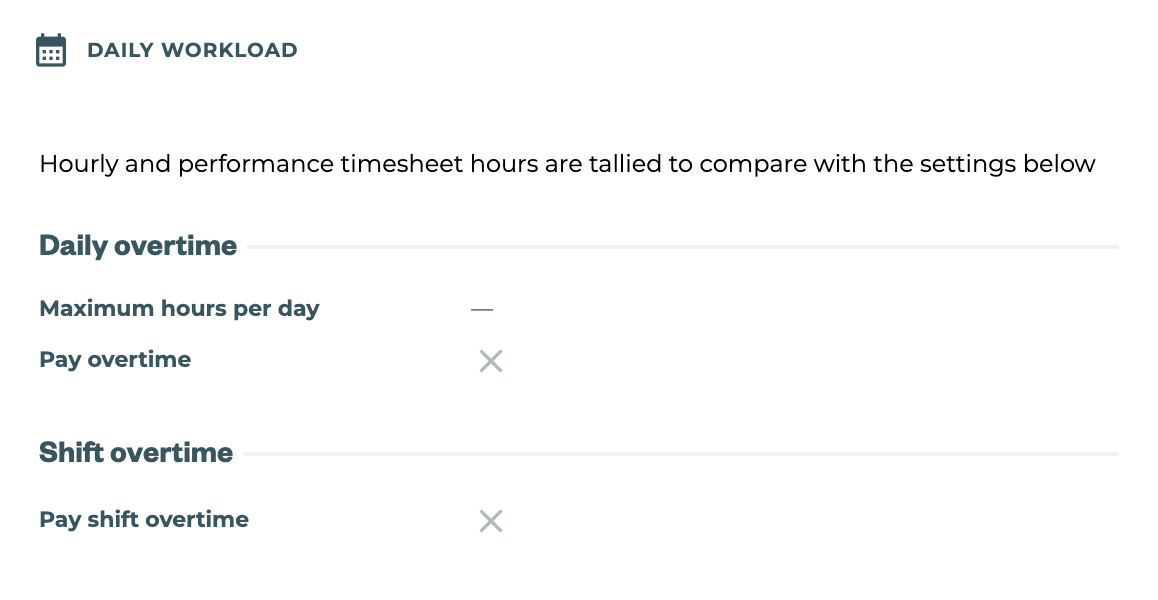
|
|
|---|---|
|
Daily overtime |
|
|
Maximum hours per day |
Maximum number of hourly timesheet hours per day
|
|
Pay overtime |
Whether daily overtime should be paid out. |
|
Shift overtime |
|
|
Pay shift overtime |
Whether shift overtime should be paid out. |
What's excluded in an Earning Rule
Hourly rate, minimum earnings and assessment start date fields are deliberately kept on the employment period, so you can apply one consistent Rule to a group of employees without forcing them all onto the same pay rate or hire date.
Assigning Employees
Employee Profiles can be viewed by clicking “→” button.
If employee/s with CURRENT Employment Periods are in the wrong Earning Rule, they can be;
-
Selected and moved individually or in bulk to the correct Earning Rule
-
Added into the open Rule using ‘+ ADD EMPLOYEES’
Changes are applied immediately to open Pay Periods. Make sure irrelevant Pay Periods are closed before making changes. If the Employee’s Rules have changed significantly, consider if they need a new Employment Period to bind the change to clear dates.