
Before starting
Before starting, make sure you have the feature enabled for your organisation.
Login to the Office app, navigate to Operations → Invoices. If this section isn’t listed, please contact us to enable the feature.
Create an Invoice from the Jobs Page
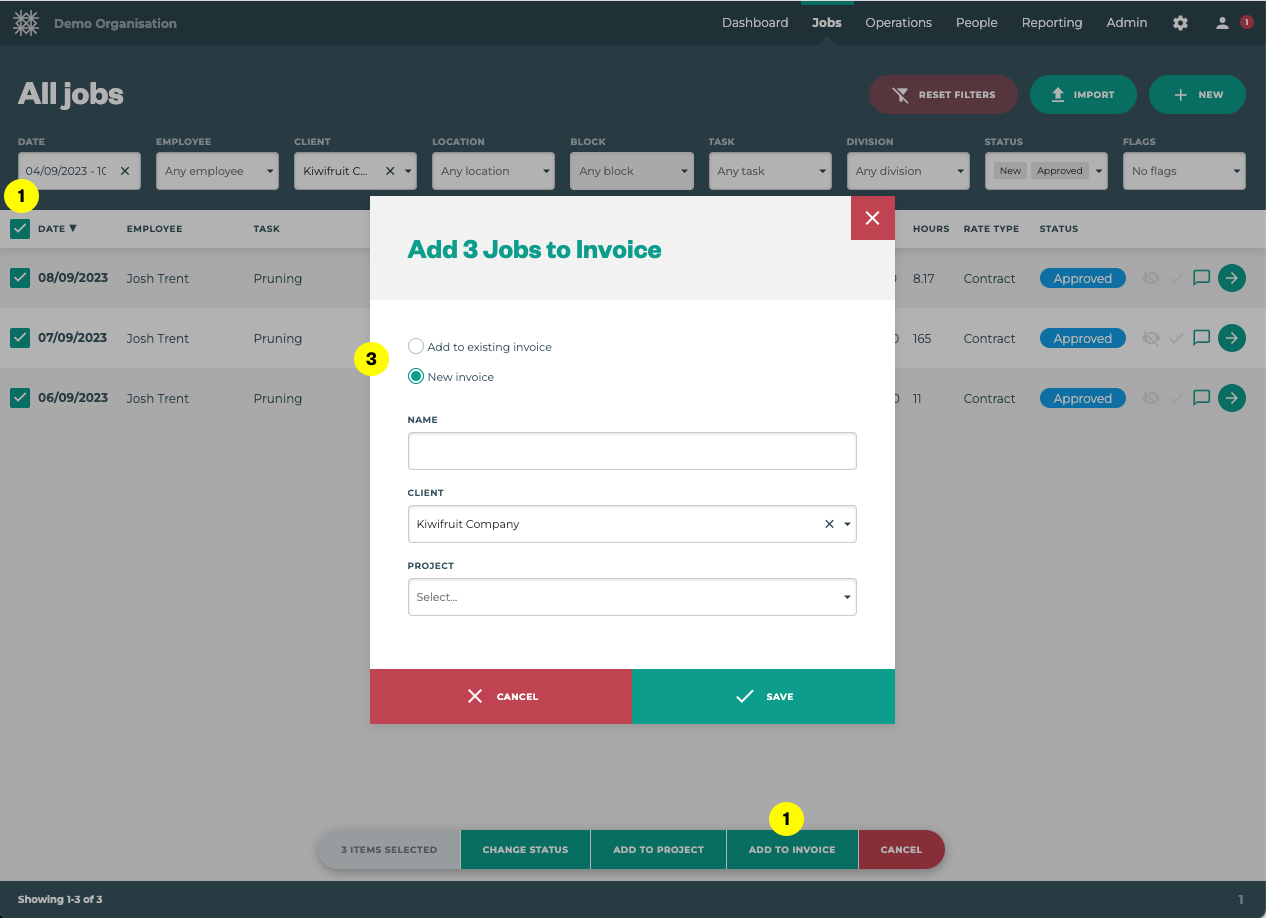
Login to the Office app, navigate to Jobs Menu → All Jobs Page.
Filter by date, client, task etc to find the relevant jobs.
-
Using the checkboxes on the left hand side, select the jobs you would like to invoice
-
Click on ‘Add to invoice’
-
Select ‘New Invoice’
-
Add a name for the invoice; a helpful reference e.g. ACME WE 10/09/23
-
Check the client and if relevant, link to a Project
Jobs can only be added to one invoice
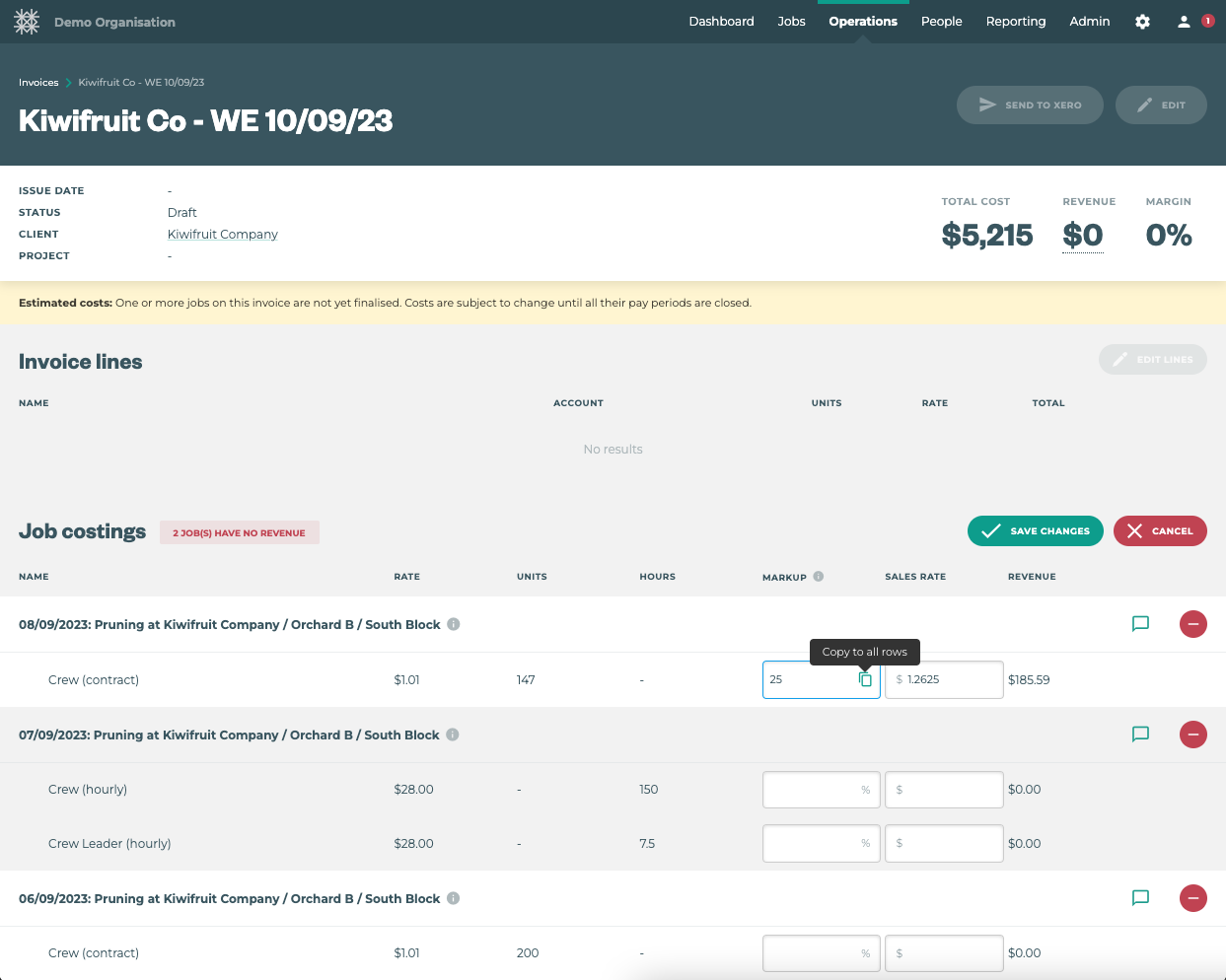
Review job costings
Once created, the invoice screen will automatically open. To see all invoices navigate to Operations Menu → Invoices.
-
Click ‘Edit job costings’
-
Enter a markup % or enter the sales rate for each job to calculate job revenue
-
Click ‘Save changes’
Pro Tip: To save time preset your sales rates;
-
People Menu → Roles Click edit to add a default hourly rate under ‘Invoicing’
-
Admin Menu → Tasks Click edit to add a default hourly or unit rate under ‘Invoicing’
To see more information about a job
-
Hover over the
icon to see units worked
-
Click the speech bubble to see any job notes
Generate invoice lines
Now the jobs have been costed/priced the invoice lines can be generated.
-
Click ‘Edit lines’
-
Choose your settings to generate the invoice lines; Jobs can be merged or split by task, location and block. This allows for both condensed simple invoice lines or detailed invoice lines.
-
Click ‘Generate invoice lines’
-
Additional invoice lines can be added ad hoc using ‘+ New Line’
-
Check the description name, Xero account (optional) Units, Rate etc and click ‘Save changes’
You can now see the invoice summary; total cost, revenue and margin etc for final review.
Invoice lines not what you expected? Don’t worry, use the button to remove any incorrect invoice lines and generate them again
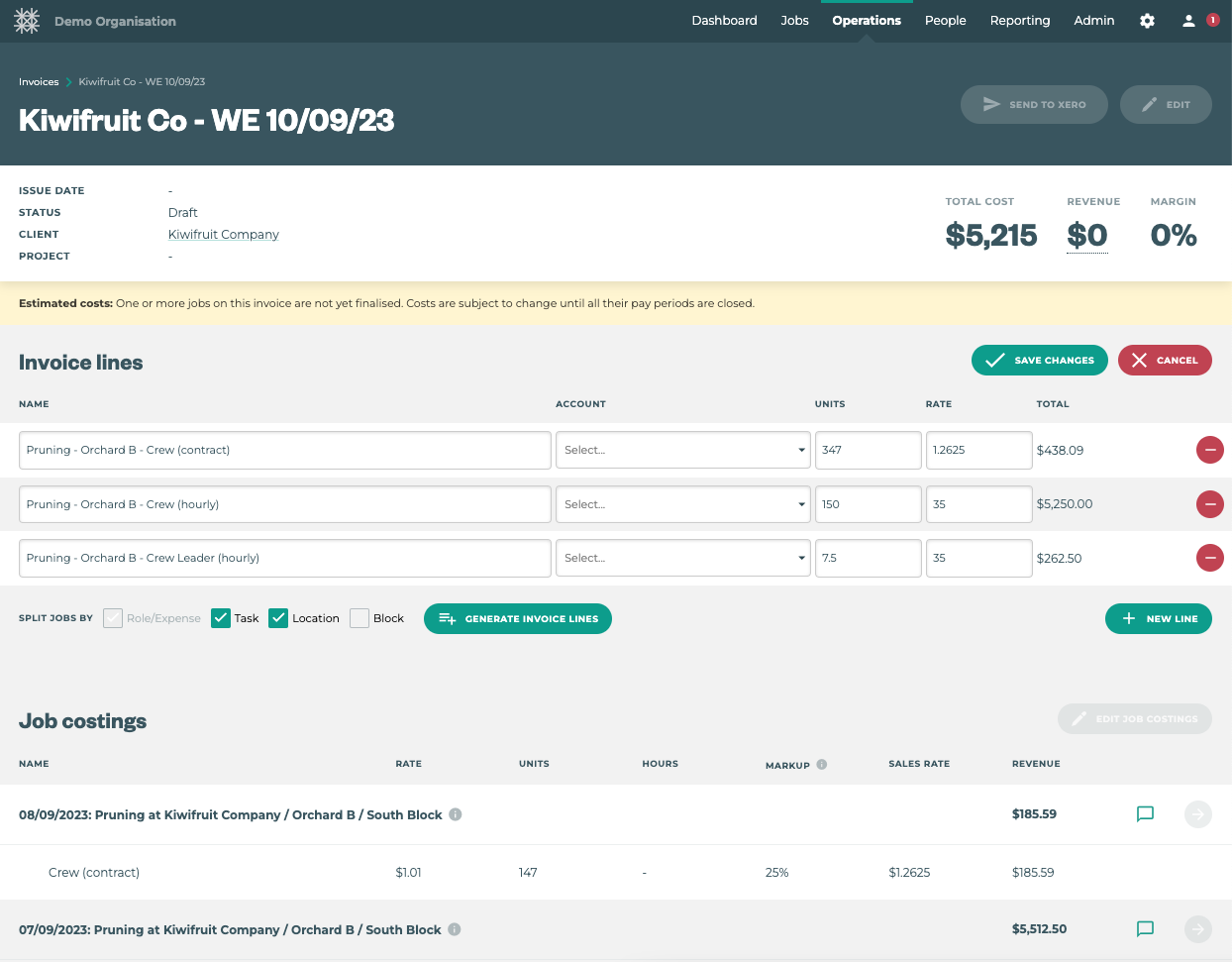
Invoice Lines created using the + GENERATE INVOICE LINES button, will always be separated by the Roles on the Jobs. If you would like 1 Invoice line for an item use the + NEW LINE and manually input the correct line data.
Send to Xero
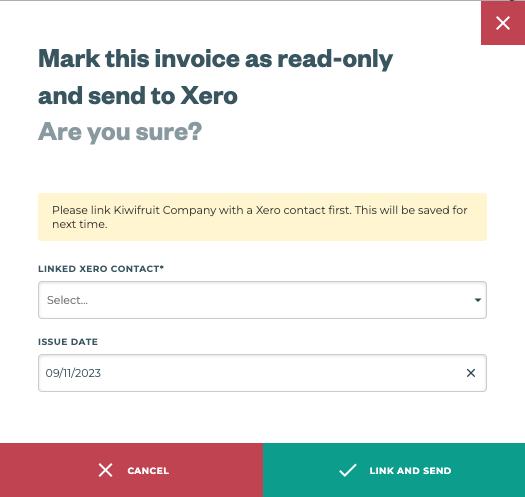
If you’re happy with the invoice lines you can send these to Xero which will create a draft invoice in your Xero account.
Once sent, the invoice will be locked, preventing further edits that may cause discrepancies between Tātou and Xero.
Linked Xero Contact: If the client hasn’t been connected, please match them with your Xero contact list.
Issue date: This is editable and will default to the day of sending.
Success!
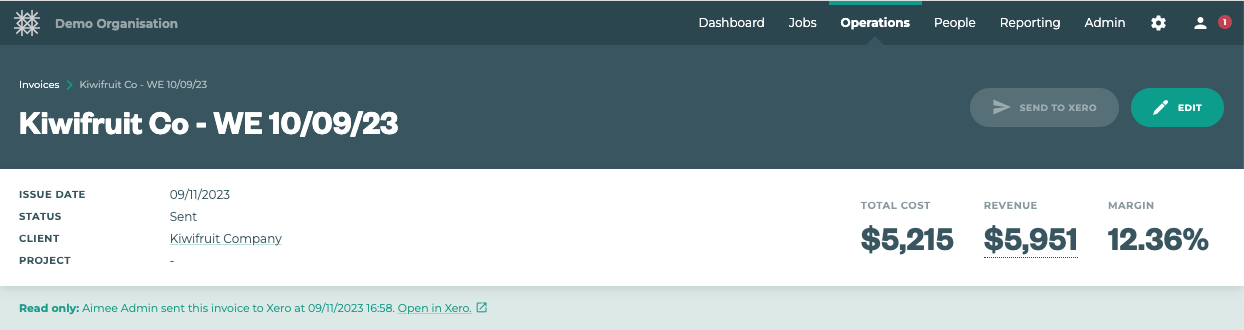
The invoice is now ‘read only’ and a handy link to see the draft invoice in Xero is provided.
Invoice check
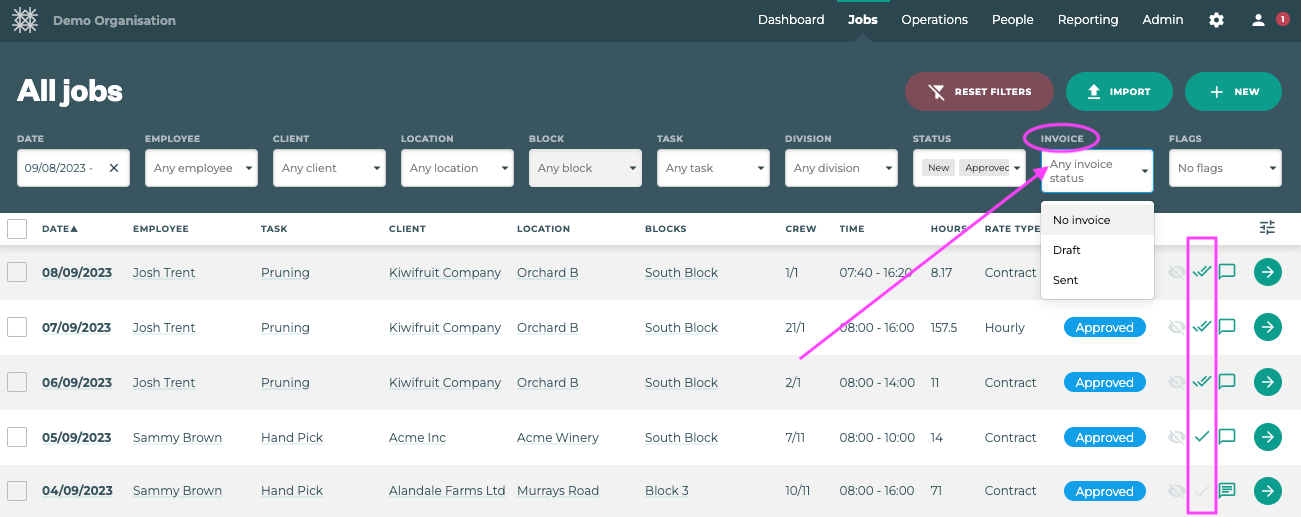
Check which jobs have been invoiced (or not) on the Jobs Menu → All Jobs screen or in Projects > Project > Jobs tab
-
Single grey tick = no invoice
-
Single green tick = Invoice attached
-
Double green tick = Invoice sent
You can filter jobs by ‘Invoice’ status, as highlighted below.
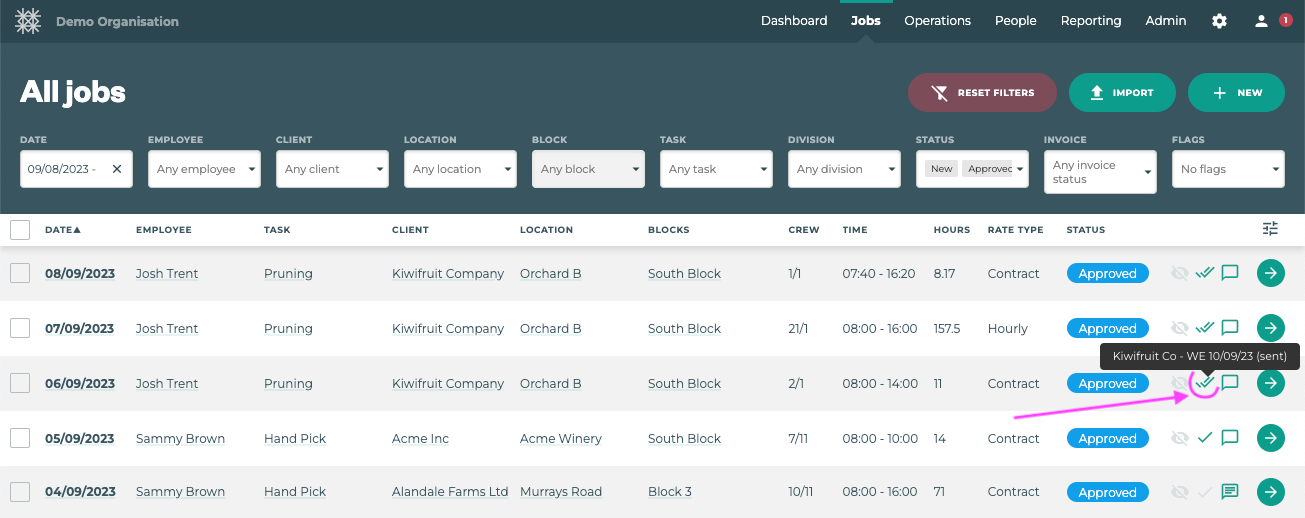
Hover on the invoice status (tick/s) to see the invoice name and click to view the invoice.
Reporting
Login to Tātou Office and navigate to Reporting → Exports. Choose from the following options;
-
Invoices export includes a summary of every invoice in your account
-
Jobs export includes an invoice status for each job and total sales value. Filter by any date range.
Made a mistake?
If you need to make changes to a sent invoice you can either;
-
Delete the invoice, which will ‘release’ the related jobs
-
Edit the jobs one-by-one removing the related invoice
The jobs will then be available to be added to a new invoice