
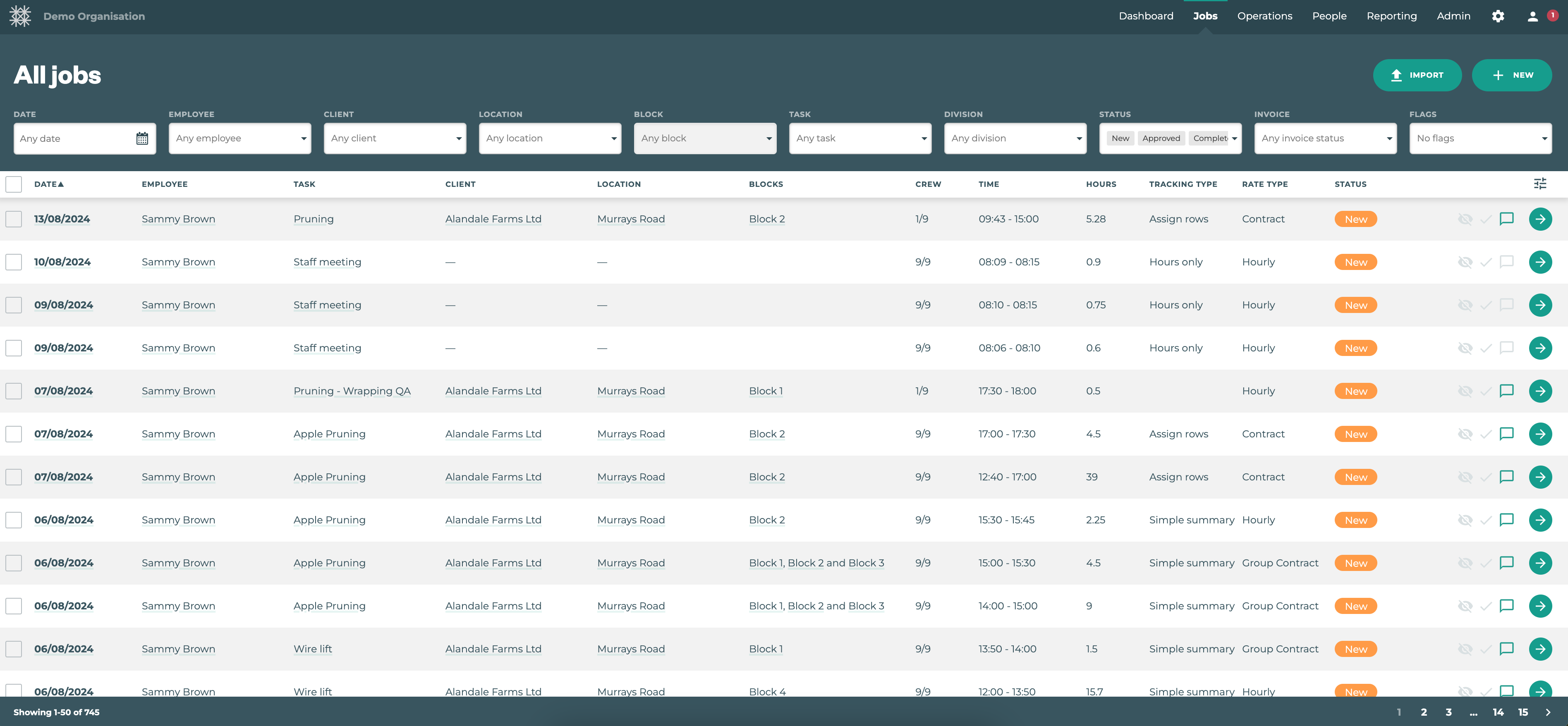
The All Jobs page is where you see all synced jobs from employees using the Tātou Field app and any jobs created in the Office.
You can quickly view job comments and filter all jobs by date, crew leaders, clients, blocks, tasks, division, the job’s status, invoice status, and even late jobs synced after the pay period.
Pro Tip - use the 
Key Features:
-
“FLAGS” Filter: Highlights LATE jobs and KIOSK ISSUES that need fixed in the Office App
-
Review Job Details: Click the

-
Job Notes: Quickly review job notes by clicking on the comment icon
-
Change Job Status:
-
In progress: Jobs that have been started, but not completed on the Field app
-
New: Jobs that have been synced in the Field App, or created in the Office app will appear as New
-
Approved: Change status to Approved after the job has been reviewed in the Office App
-
Complete: Change status to Complete after the job has been processed through Payroll
-
-
Bulk Select Jobs, even across multiple pages, to change status, add to projects, or add to an invoice

-
Add a NEW Job from the Office
-
Invoice Details: If you’re using the Invoice feature, there are quick icons to inform users of invoice status of each job.
|
Icon Combo |
What does it mean |
|---|---|

|
This means this job has not been linked to an Invoice, and this icon |

|
This means an invoice has been created with this Job, but has not been approved by the a Client with Client Access, and has not been sent. |

|
This means an invoice has been created for this Job, and the Client with Client Access has approved this invoice. |

|
This combo means the Invoice that has been created with this Job has been, Created, Client Approved, and Sent to Xero |

Pro Tip: You create Invoices from this page, by filtering the Jobs to the Client, Locations, and/or Tasks you would like to invoice for, selecting all jobs that apply, and selecting “ADD TO INVOICE.”
If your organisation does not use the Client Access Feature, but the thumbs up icon is showing, this can be linked to Job Approvers selecting “READY” under the CLIENT ACCESS options for Bulk Edit → Job Status, when they are approving Jobs.