
Generate unique tags for employees to clock in and out of the Kiosk app.
Tags can be customised to print with standard office printers, specialised label printers or professional printing suppliers. All you need is the layout specifications.
Examples label layouts:
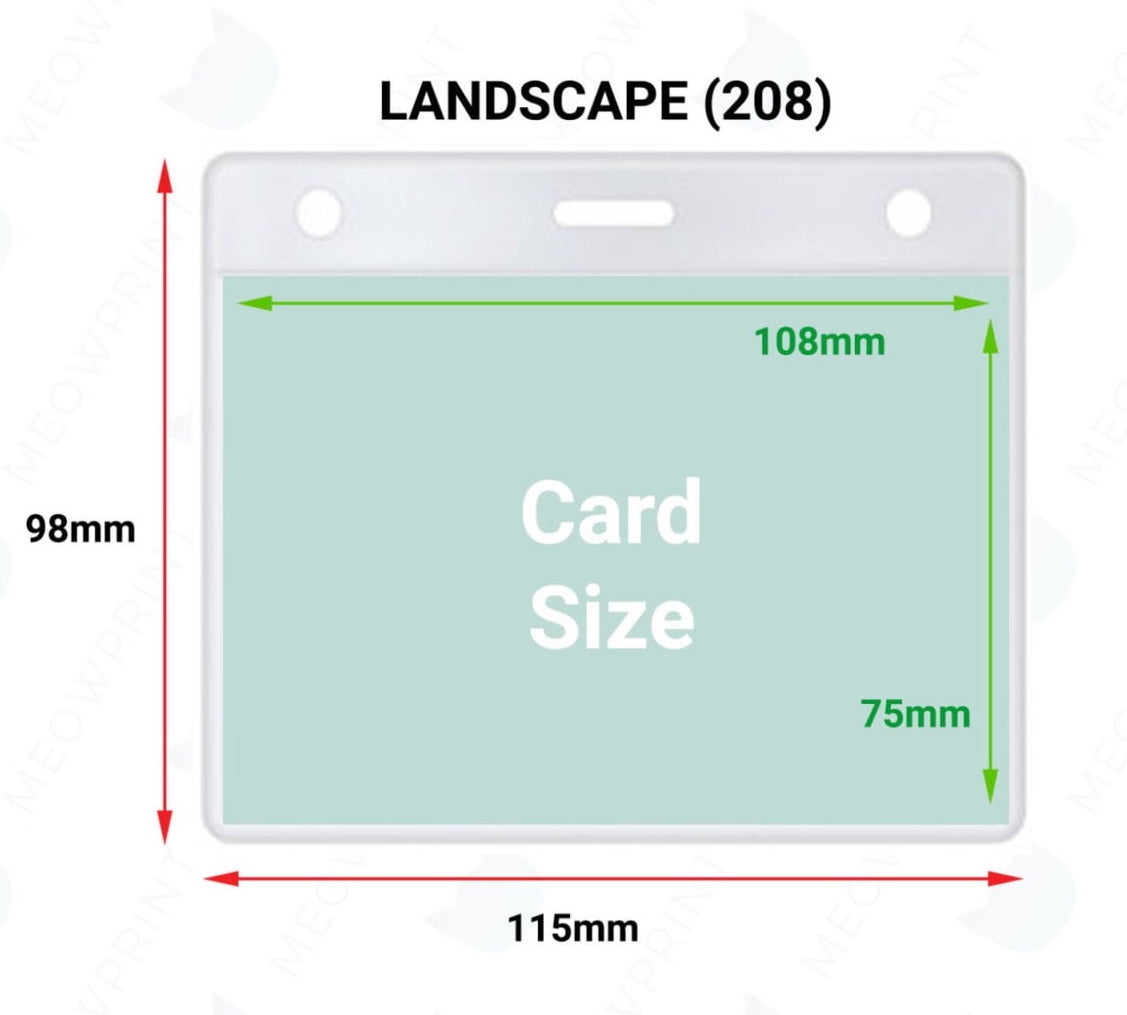
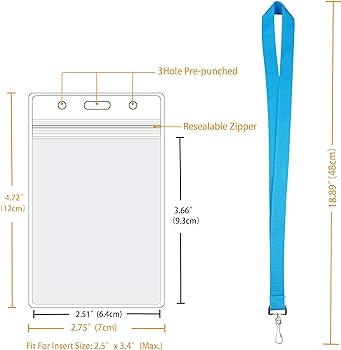
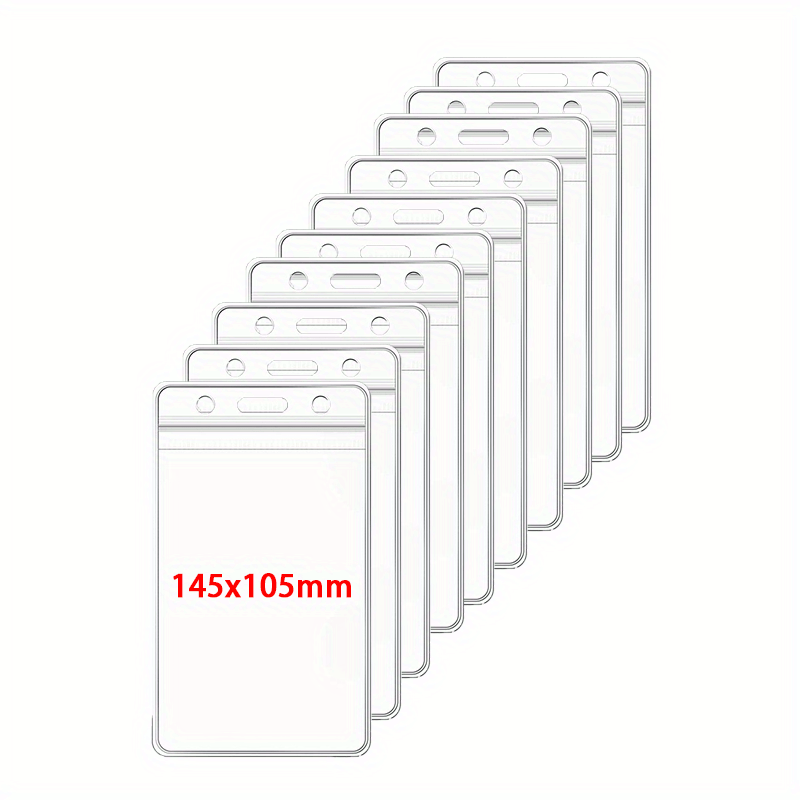
Before starting
Before starting, make sure you have the feature enabled for your organisation.
Login to the Office app, navigate to Jobs → Kiosk scans. If this section isn’t listed, please contact us to enable the feature.
QR code specifications
Login to the Office app, navigate to ⚙️ → QR Code Generator and make sure you’re on the Kiosk tab.
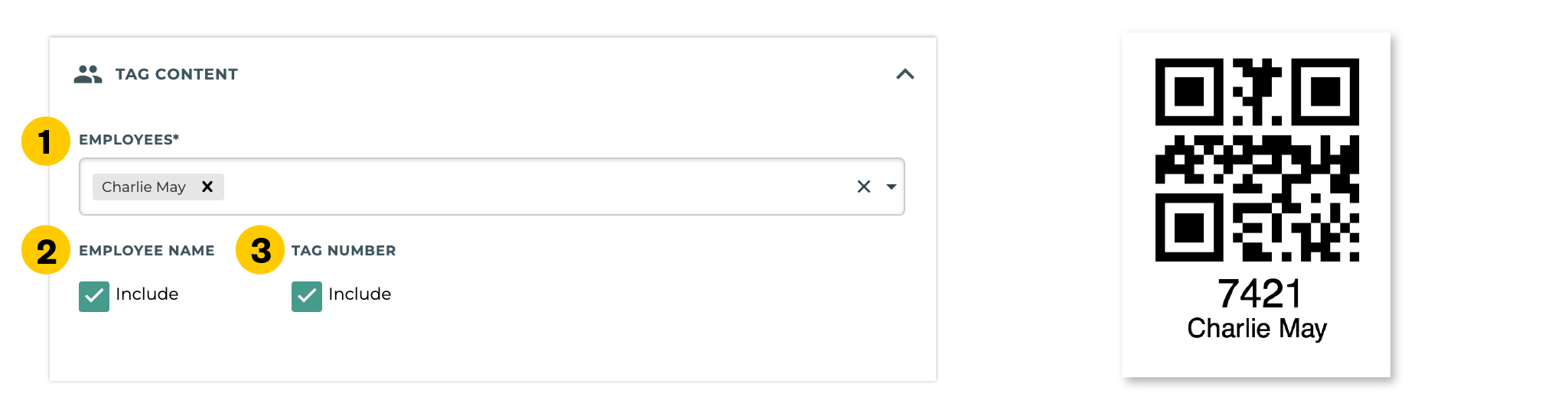
Tag content
-
Select the employee/s you need to generate tags for
-
Include employee name, shown in example
-
Include staff ID, shown in example
Page settings
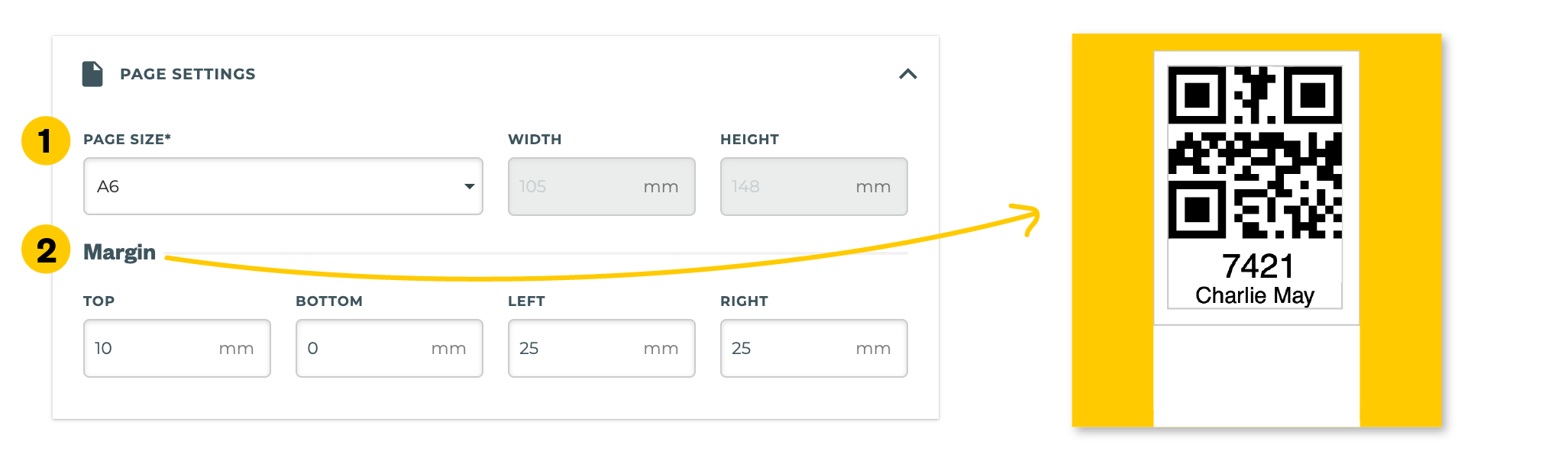
-
Page size; width and height of the entire page
-
Margin; top, bottom, left and right spacing inside the page
Tag settings
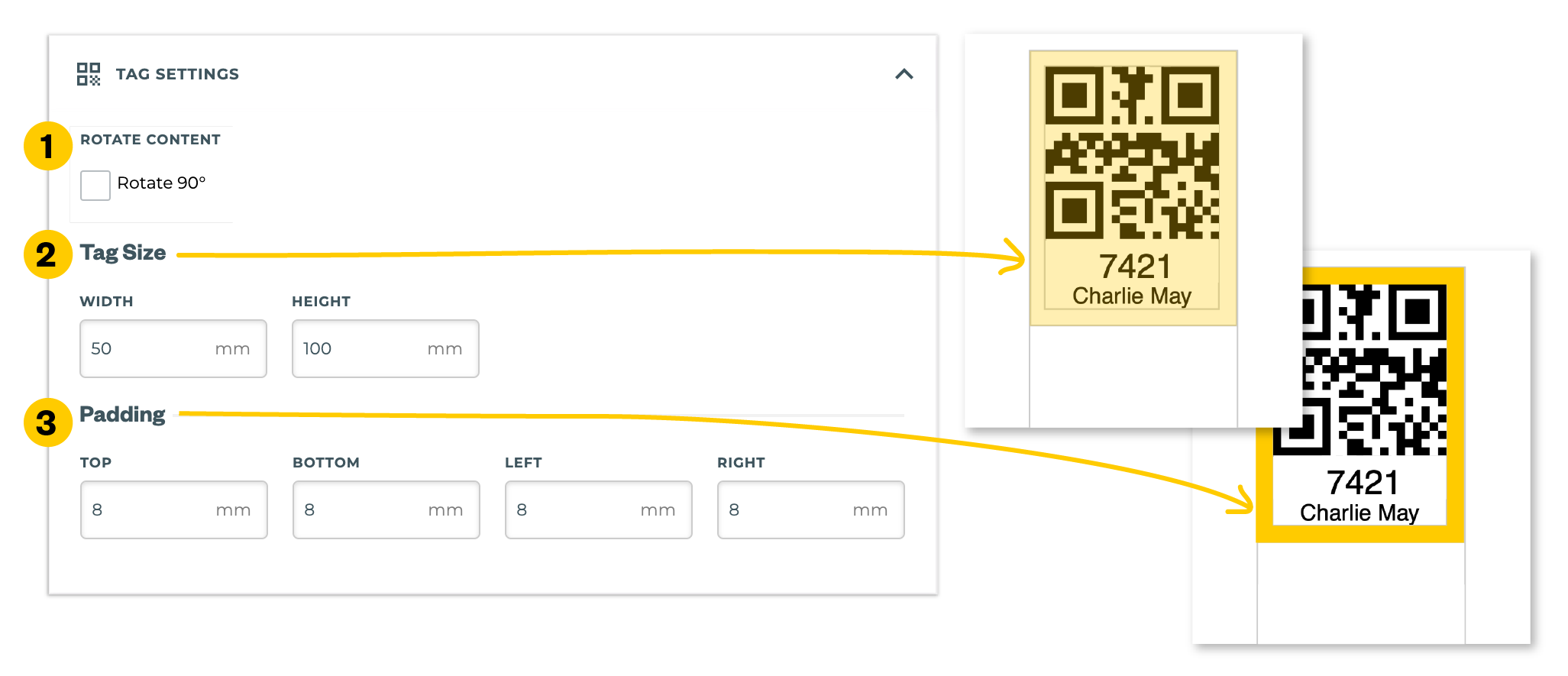
-
Rotate content
-
Tag size; width and height
-
Padding; top, bottom, left and right spacing inside the tag
If the tag size is too small, text or numbers may not fit. Increase the tag height or reduce the padding to ensure there is enough space.
Update preview
It’s important to preview your settings to check the layout, generating multiple tags for multiple employees can take a few minutes.
Start generating
Your QR codes will be generated and layout specifications applied.
Download
PDF files will download to your computer, one file per employee.
Related articles