
Overview
All employees have a unique Staff ID, this is available in two formats;
-
Digital Staff ID Card - Learn more about Employee Profile Permissions 🔗
-
Printed Staff ID Card - How to use our QR Code Generator 🔗
A Crew Leader (aka Supervisor) manages attendance for their Crew Members on each Job. Scanning each Crew Member in is the fastest and most reliable way to make sure everyone's attendance is recorded correctly.
Employees must be set up in Tātou Office before accessing a Staff ID Card
Why scan Job Attendance
A scan links attendance to the exact person who worked, so every Crew Member gets credit for their own time.
-
Accuracy. Each scan records that specific Crew Member, so their attendance, hours and pay are credited to the right person every time.
-
Speed. Scanning a crew in is much quicker than searching for and selecting each person, so the shift starts on time and no one is left waiting.
-
Crews that change often. When crews rotate frequently or include contractors, you may not have learned everyone's name yet. Scanning makes sure each person is recorded correctly from their first day while you get to know your crew.
-
Similar or identical names. Popular names can pop up in the same crew or similar names can be spelled alike. A scan tells them apart, so no one's attendance is mixed up with someone else's.
If your crew stays the same or you’re on a first name basis with all your employees then scanning may not be for you, we will always maintain name based attendance.
Steps to scan Job Attendance in the Field app
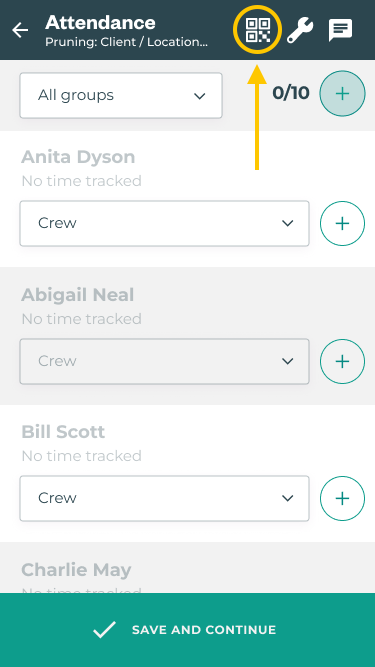
Step 1
Start a Job and continue to the Attendance step.
Use the QR code icon (circled above) to open the camera.
If employees are already marked present the option to clear the attendance will pop up. This allows you to start from scratch.
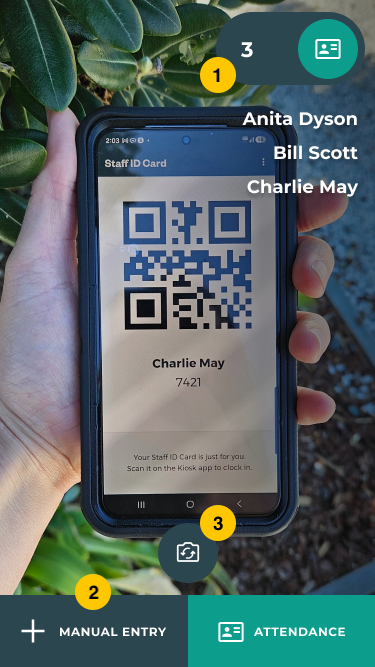
Step 2
Start scanning…
(1) The attendance counter in the top right will tally successful Staff ID scans.
(2) Manual entry allows Staff ID’s to be typed.
(3) Flip camera to selfie mode for a ‘self-service’ approach.
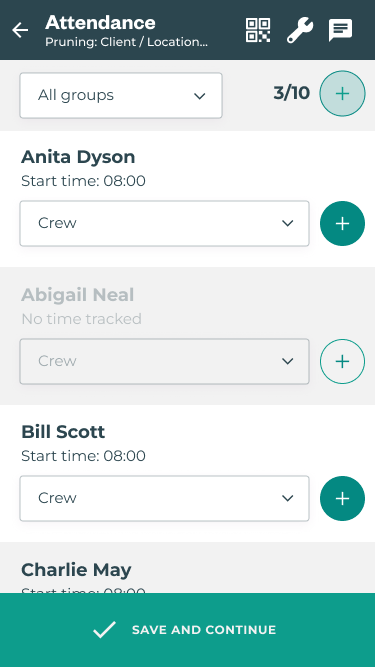
Step 3
Check the Attendance names and tally is as expected.
Edit any roles if necessary, then 'Save and Continue'
If a scanned employee is not in your Crew they will be automatically added
Troubleshooting
-
“No employee found for XXXX”
-
The staff ID does not match any employee in your account or scope e.g. in your Division.
-
-
“Could not find XXXX, Please try again”
-
The staff ID could not be checked, ensure you have signal and try again
-
-
“X already marked present. How do you want to proceed?”
-
Keep current = I’m confident these X employees are present and want to scan more employees to add to the job.
-
Mark all absent = I want to rely on scanned employees only, clear the job attendance and start scanning.
-